
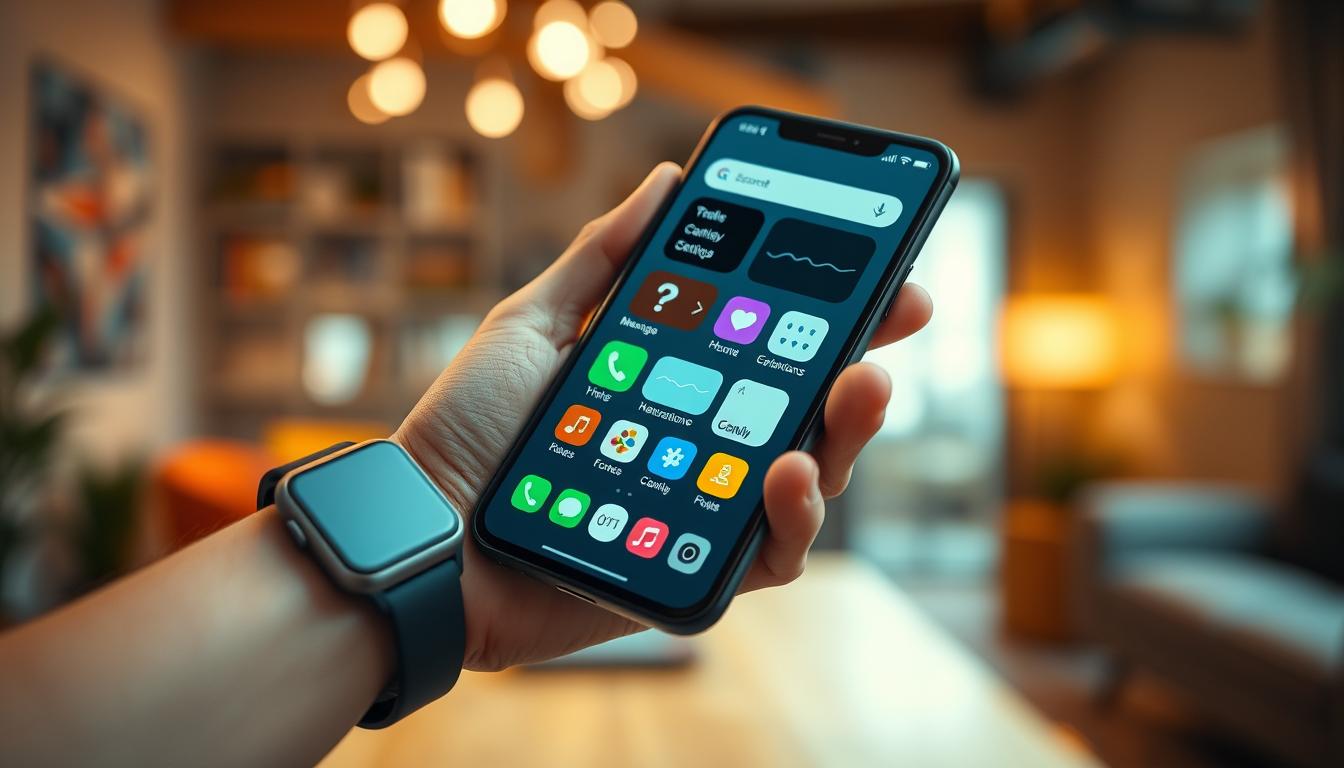
How to Simplify a Smartphone Interface for Easier Use
Your phone is a powerful tool. It can guide you to a new place, connect you with friends, and manage your schedule. But this power can sometimes feel overwhelming.
Many people find their screens too crowded. Notifications constantly buzz, and apps compete for your attention. This can make your device feel more like a chore than a helper.
The good news is that you can take control. You can transform your phone into a calm, focused tool that works for you. This saves you valuable time and reduces daily stress.
Whether you’re helping an older relative or improving your own experience, a cleaner setup makes a big difference. It helps you build a healthier relationship with your device and reclaim your time.
Key Takeaways
- A cluttered phone can increase stress and reduce productivity.
- Taking control of your device’s layout saves you time every day.
- A simplified setup benefits users of all ages and tech skill levels.
- Reducing notifications and app overload improves your overall experience.
- Practical steps can help you create a phone that supports your life.
Why You Need a Simplified Smartphone Interface
Digital clutter on your device is more than just an eyesore; it impacts your daily routine. That crowded screen makes it hard to find the apps you need quickly. This wastes your precious time and adds unnecessary stress to your day.
Identifying Clutter and Overwhelming Features
Think about the last time you helped an older relative with their phone. This often reveals how complicated our own devices have become. You might see a display filled with unused apps and constant notifications.
This barrage of alerts creates mental fatigue. It pulls your focus away from your real life. Research even links heavy social media use to increased feelings of anxiety.
Benefits for Everyday Users and Older Relatives
A cleaner setup offers significant advantages for everyone. For you, it means less frustration and more productivity. You spend less time searching and more time doing.
For seniors or those less familiar with technology, a simple layout is empowering. It reduces intimidation and makes essential functions, like calling a contact, easy to access. A better phone experience supports a better quality of life for all people.
Simplifying Smartphone Interfaces: Key Techniques and Strategies
Before deleting any apps, it’s essential to define your personal goals for using technology. This foundational step ensures your changes will have lasting impact.
Understanding the Core Principles
Digital minimalism focuses on being intentional with your device usage. Your phone should support your life rather than control it.
Start by listing your core values and daily objectives. Then identify how your current setup either helps or hinders these goals.
Choosing the Right Tools and Apps
Evaluate each application based on its real value to you. Ask if it genuinely supports your work or personal growth.
Some productivity tools might actually create more distraction. Simpler alternatives could accomplish the same things more efficiently.
| Evaluation Criteria | Keep It | Remove It | Practical Example |
|---|---|---|---|
| Daily Usage | Used for essential tasks | Rarely opened | Weather app vs. game |
| Value Contribution | Supports goals | Wastes time | Calendar vs. social media |
| Focus Impact | Enhances concentration | Creates distraction | Notes app vs. news feed |
| Simplicity | Clean interface | Complex features | Basic camera vs. photo editor |
This approach transforms your device into a focused tool. It enhances your daily activities without unnecessary complexity.
Customizing Your Display and Accessibility Settings
Many users overlook the powerful customization options available in their phone’s settings menu. These features can transform your daily interaction with your device.
Your display settings offer tools that dramatically improve visibility. They make your device more comfortable to use for extended periods.
Adjusting Icon and Text Sizes for Better Visibility
Increasing icon size makes tapping apps more accurate. Navigate to Settings > Display > Display size and text to adjust the slider.
You can also customize text size for better readability. Keep in mind that larger fonts may truncate app names under icons.
Enabling High-Contrast and Easy Mode on Devices
Samsung devices feature an Easy mode setting that simplifies your home screen. This option displays larger icons and high-contrast text.
High-contrast text makes words stand out against backgrounds. This improves readability in various lighting conditions.
Fine-Tuning Touch-and-Hold Delays
For users who experience accidental touches, adjust the touch-and-hold delay. Find this option under Settings > Accessibility > Timing controls.
You can choose between short, medium, or long delay options. This prevents unwanted selections and creates a more forgiving interface.
These accessibility settings work together to create a comfortable viewing experience. Experiment with different combinations to find what works best for your needs.
Streamlining Your Home Screen and App Layout
Organizing your home screen effectively can transform how you interact with your device. This central space should serve your daily needs without creating visual stress.
Your home screen is the first thing you see when unlocking your phone. A clean layout creates an immediately calming experience.
Decluttering by Removing Unnecessary Apps
Start by reviewing each app on your home screen. Ask yourself when you last used it honestly.
If an app hasn’t been opened in weeks, remove it from this prime space. Long-press the icon and select “Remove” to declutter.
Aim to keep only 6-12 essential apps visible. Store everything else in your app drawer for occasional use.
Organizing Essential Contacts and Shortcuts
For quick communication, add important contacts directly to your home screen. This provides one-tap access to family and friends.
In your Phone app, select a contact and use the three-dot menu to “Add to home screen.” WhatsApp offers similar shortcuts through its chat interface.
This approach eliminates menu navigation confusion. It makes calling loved ones incredibly straightforward.
| Organization Method | Best For | Key Features | Implementation |
|---|---|---|---|
| Minimalist Approach | Daily focus | 6-12 essential apps only | Remove all non-essential icons |
| Contact-Focused | Communication needs | Direct contact shortcuts | Add favorites to home screen |
| Search-Powered | Tech-savvy users | AI search bar access | Rely on search for most functions |
Third-party launcher apps like Simple Launcher offer alternative interfaces. They provide large icons and high-contrast modes for better visibility.
These tools help you create a personalized system. Your home screen should match how you actually use your device daily.
Optimizing Notifications and Quick Settings
Taking control of your phone’s alerts and shortcuts is the final step to a peaceful digital experience. These two features work together to reduce daily distractions.
When optimized correctly, they create instant access to what matters while silencing unnecessary interruptions. This balance transforms how you use your device every day.
Customizing Quick Settings for Efficiency
Your Quick Settings panel provides one-tap access to frequently used features. Pull down from the top of your screen to see this hidden menu.
Tap the edit button (usually a pencil icon) to customize which settings appear. Drag your most important toggles to the top for easiest access.
Remove default options you rarely use. This creates a personalized control center that saves time navigating menus.
Managing and Disabling Non-Essential Notifications
Constant alerts fragment your focus throughout the day. Go to Settings > Notifications > App notifications to regain control.
Disable notifications for apps that don’t require immediate attention. Keep only essential alerts like messages from family.
Research shows that resisting constant temptations drains willpower. Eliminating unnecessary alerts preserves your mental energy.
| Notification Type | Recommended Action | Reasoning | Examples |
|---|---|---|---|
| Essential Communications | Keep Enabled | Time-sensitive messages | Texts, WhatsApp, email |
| Entertainment Updates | Disable | Non-urgent information | Netflix, social media |
| Shopping Promotions | Disable | Creates artificial urgency | Groupon, store apps |
| News Alerts | Disable | Information will wait | CNN, news apps |
These changes create a device that serves you rather than interrupts you. You’ll enjoy cleaner screens and more focused attention.
Conclusion
Your newly streamlined phone setup represents a significant step toward digital wellness. You’ve transformed an overwhelming device into a focused tool that supports your daily life.
The changes you’ve made will deliver real benefits. You’ll notice more battery life with fewer apps running. Your mood may improve as you spend less time on your screen. This frees up valuable time for meaningful work and real-world connections.
Remember that your setup can evolve as your needs change. Explore alternative launcher options if you want even more focus. Always prioritize security when downloading new tools.
Share what you’ve learned with other people who might benefit. Your experience can help colleagues or family members create a better relationship with their devices.