
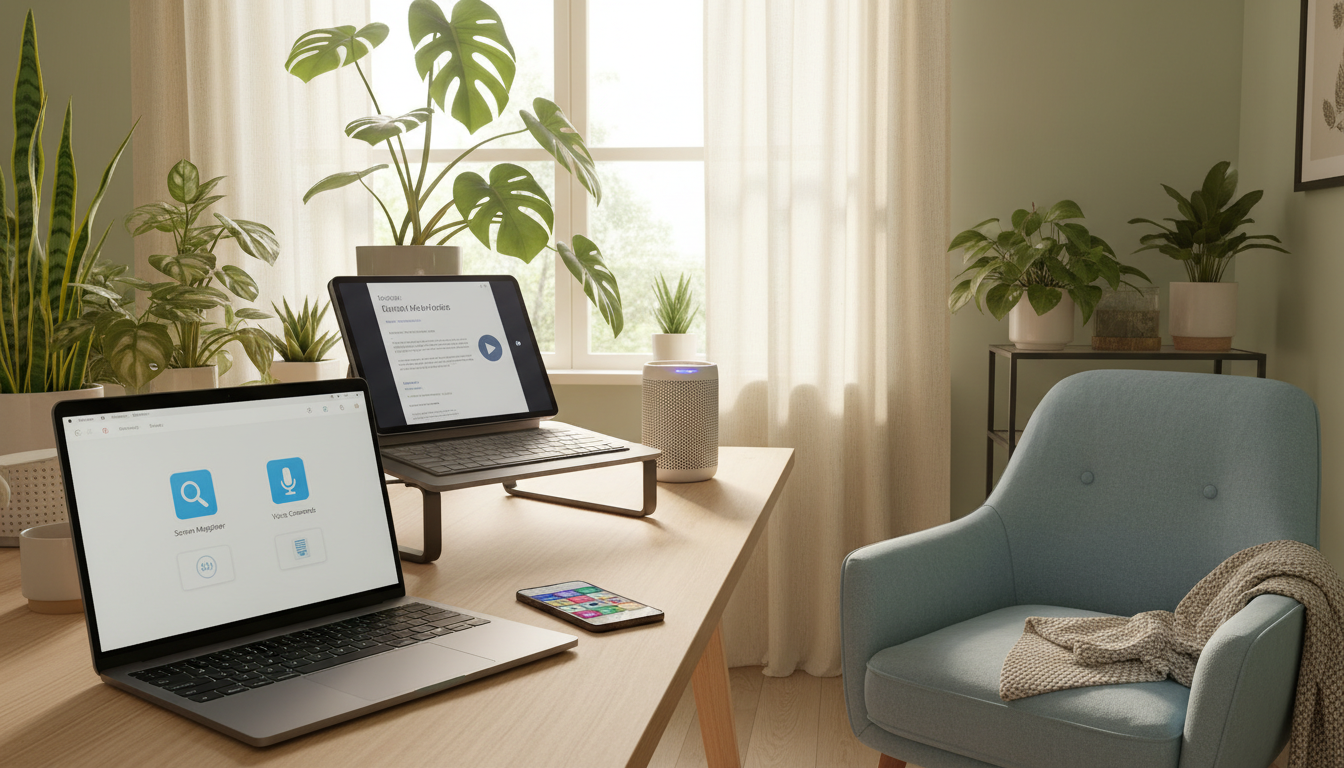
Assistive features already on your devices—and how to use them effectively
Your smartphone, tablet, and computer are more powerful than you might realize. They come packed with helpful tools designed to make life easier. These options can transform how you interact with your technology.
Many people think these tools are only for those with specific challenges. This is not the case. Anyone can benefit from voice commands when their hands are full or text-to-speech while multitasking.
You can customize your digital world without buying extra equipment. This guide will show you how to find and use these powerful settings. You will learn to activate them on all major platforms for your specific needs.
The tools you need are often just a few taps away in your device’s settings. Learning to use them can boost your productivity and make daily tasks simpler. You can improve your overall experience with the technology you already own.
Key Takeaways
- Your existing devices contain powerful tools to improve accessibility and efficiency.
- These settings benefit everyone, not just individuals with specific needs.
- You can customize your experience without purchasing additional specialized equipment.
- Key functions like voice control and text-to-speech are readily available.
- Activating these options is typically a simple process within your device settings.
- Using these tools effectively can enhance productivity and simplify daily tasks.
Understanding Assistive Technology and Its Importance
Technology has evolved to include support systems that adapt to various user requirements and preferences. These solutions help people interact more effectively with their digital tools.
What is Assistive Technology?
Assistive technology includes tools and software designed to help individuals with disabilities complete tasks. This covers everything from mobility aids to communication devices.
These solutions address various needs like reading difficulties and attention challenges. They help people perform work-related activities and maintain independence.
Benefits for Everyday Users
You don’t need a specific diagnosis to benefit from these tools. Assistive technology improves productivity for all individuals.
These options offer alternative ways to complete daily tasks. They can make your digital life more efficient and comfortable.
The right tools help people pursue careers and participate fully in social environments. Proper implementation creates equal opportunities for everyone.
Exploring Assistive Features Built Into Everyday Devices
Modern electronics contain powerful capabilities waiting to be discovered. These integrated systems help people interact with their technology more effectively.
Your gadgets come with a comprehensive range of support functions. They address various needs without requiring extra software.
Identifying Key Built-In Tools
Most contemporary devices include essential support tools. You’ll find screen readers, text-to-speech, and voice recognition systems.
Other valuable options include screen magnification and color adjustments. Keyboard customization and gesture controls are also common.
Discovering which tools your specific device offers is crucial. This knowledge helps you personalize your technology experience.
Comparing Device Platforms
Different operating systems provide similar support capabilities. iOS devices access these through Settings > General > Accessibility.
macOS computers offer comparable functions for Apple laptops and desktops. Android, Windows, and Chrome OS each have their own suites.
The implementation may vary across platforms. However, the core range of helpful technology remains consistent.
Leveraging Speech and Text Options
Speaking to your device and having it respond intelligently is no longer science fiction but everyday reality. These capabilities help you interact with technology in more natural ways.
Different platforms offer various tools for converting between spoken and written content. This table shows the main options available:
| Platform | Text-to-Speech Tool | Speech-to-Text Feature | Voice Control App |
|---|---|---|---|
| iOS | Speak Selection, Speak Screen | Dictation | Siri |
| Android | Select to Speak | Voice Typing | Google Assistant |
| Windows | Narrator | Dictate | Cortana |
| macOS | VoiceOver | Dictation | Siri |
Text-to-Speech and Screen Readers
Text-to-speech software converts written words into spoken audio. This helps people who prefer listening over reading. iOS offers two main options for this function.
Speak Selection lets you highlight specific text blocks to be read aloud. Speak Screen reads entire pages with a simple gesture. Both options can highlight words as they’re spoken.
You can customize the voice and reading speed. The pronunciation feature adjusts how specific words are said. This ensures accurate audio output.
Dictation and Voice Recognition
Dictation features let you write with your voice instead of typing. Press the microphone button on your keyboard to activate this tool. It’s perfect when your hands are busy.
Voice recognition software has become mainstream in many apps. Siri and Alexa use this technology extensively. This software allows complete device control through voice commands.
You can dictate text, browse the web, and operate your device hands-free. This provides greater independence and accessibility for all users.
Enhancing Learning and Reading Through Technology
Reading and learning become more effective with the right digital support tools. These options help you process information more efficiently. They transform how you interact with educational content.
Many people discover new ways to understand complex material through technology. The right tools can make a significant difference in comprehension.
Using Speak Selection and Screen Reading
iOS provides two powerful text-to-speech options for better reading experiences. Speak Selection lets you highlight specific text blocks for audio playback. This is perfect for difficult passages or unfamiliar vocabulary.
Speak Screen reads entire pages aloud with a simple gesture. Both options include word highlighting as they speak. This synchronized visual and auditory input reinforces comprehension.
These tools benefit diverse users beyond those with reading challenges. Language learners gain pronunciation practice through audio support. Students studying complex subjects can focus better with multisensory input.
You can adjust the reading speed to match your learning needs. Slower speeds help with new material, while faster paces work for review. This flexibility makes screen reading adaptable to various educational situations.
The technology works across different applications that display text. From web browsers to ebook readers, the functionality remains consistent. This creates a seamless learning experience across all your digital content.
Managing Motor Skills and Attention With Device Tools
Many people discover new ways to overcome physical and cognitive barriers through device settings. These options help you interact with technology more comfortably.
Your device contains specific tools for motor skill support and attention management. They create alternative interaction methods that suit your needs.
Custom Gestures and AssistiveTouch
AssistiveTouch provides customized control options for users with mobility challenges. This feature simplifies complex multi-finger gestures into single-touch actions.
You can create personalized commands for zooming, rotating, and navigation. The on-screen menu gives quick access to volume control and screen locking.
This customization transforms how you complete tasks requiring precise motor control. It makes device operation smoother for every user.
Focus and Attention Support
Safari Reader removes distractions by stripping away ads and visual clutter. Press the paragraph symbol (¶) in Safari’s address bar to activate it.
Guided Access locks your device into a single application. This tool helps maintain concentration on specific tasks by disabling the Home button.
You can even block distracting areas within an app. These features work together to create a focused digital environment.
| Feature | Primary Benefit | Best For | Activation Method |
|---|---|---|---|
| AssistiveTouch | Custom gesture control | Motor skill challenges | Settings > Accessibility |
| Safari Reader | Distraction-free reading | Attention focus | Paragraph symbol in Safari |
| Guided Access | Single-app locking | Task concentration | Accessibility shortcuts |
These tools provide practical solutions for daily technology use. They help you navigate your device in the way that works best for you.
Customizing Keyboard and Input Options
Typing and input methods offer some of the most customizable aspects of modern computing. You can transform how you interact with your device through various keyboard alternatives.
These solutions range from physical equipment to on-screen software. Each option addresses different needs for comfort and accessibility.
On-screen and Ergonomic Keyboards
On-screen keyboard software displays a virtual keyboard on your screen. You can interact with it using a mouse, touchscreen, or specialized eye tracking equipment.
Advanced versions incorporate word prediction to reduce keystrokes. This speeds up typing for users with mobility limitations.
Ergonomic keyboards provide significant benefits for hand or wrist conditions. They reduce strain during extended typing sessions.
Specialized Keyguards and Alternate Layouts
Keyguards are simple physical equipment that sit atop your keyboard. They create barriers between keys to prevent accidental presses.
Large format keyboards offer bigger, easier-to-see keys. This benefits users with low vision or limited precision.
Programmable keyboards let you customize layouts and functions. You can match them to your specific workflow and physical capabilities.
| Keyboard Type | Primary Benefit | Best Use Case | Input Method |
|---|---|---|---|
| On-screen Software | Flexible interaction | Mobility limitations | Mouse, touch, eye tracking |
| Ergonomic Equipment | Reduced strain | Hand/wrist conditions | Physical typing |
| Large Format | Enhanced visibility | Low vision users | Standard typing |
| Programmable Options | Custom layouts | Specific workflows | Configurable input |
The right keyboard solution can dramatically improve your computing experience. Explore these options to find what works best for your needs.
Integrating Audio Support for Enhanced Hearing
Clear audio is vital for full participation in digital life. Many options exist to improve your listening experience. These tools help you hear conversations, media, and alerts more distinctly.
You can boost your hearing clarity with specialized audio systems. These solutions work alongside your existing hearing aids or independently. They capture and amplify sound directly for you.
Assistive Listening Devices and Microphone Options
Several types of audio systems provide targeted hearing support. Each technology serves different environments and needs.
- Bluetooth systems stream sound directly to your hearing aids or headphones. They deliver clear audio from phone calls and videos.
- FM systems use radio signals to transmit a speaker’s voice to your receiver. This is perfect for lectures or distant conversations.
- Audio induction loops create magnetic fields in public spaces. They send sound straight to your device’s telecoil mode.
Personal amplified systems let you control volume and tone. You get customized audio support that matches your hearing profile.
Voice-Activated Controls and Accessibility Software
Voice commands offer powerful alternatives to audio feedback. You can operate your technology through speech. Visual confirmations on screen show your commands were received.
Video conferencing platforms like Zoom and Skype provide live captioning. This real-time text support ensures you follow meetings without missing information. These accessibility software options create inclusive digital environments.
Utilizing Visual Enhancements for Better Accessibility
Clear vision is essential for navigating your digital world, and your technology offers powerful tools to enhance it. These options help you see and interact with content more comfortably.
You can adjust how information appears on your display. This includes enlarging text, changing colors, and even converting content to braille.
Screen Magnifiers and High-Contrast Features
Screen magnifier software enlarges specific areas of your display. This makes small text and fine details much easier to see.
You can control the magnification by moving your cursor. Some tools also offer automatic movement across the screen.
High-contrast modes and color inversion work with magnification. They change the appearance of your display to reduce eye strain.
These visual adjustments create a more comfortable viewing experience for all users.
Refreshable Braille Displays and Visual Customizations
Refreshable braille displays provide tactile access to digital content. They connect to your computer or phone and raise braille cells dynamically.
For proficient braille readers, this method is often faster than listening to audio. It offers direct, private interaction with text.
Screen reader software like JAWS and NVDA can output to these displays. They convert on-screen information into braille.
You have many options for personalizing your visual experience. Adjusting text size, font, and spacing further improves readability.
| Tool Type | Primary Function | Key Examples | Best For |
|---|---|---|---|
| Screen Magnifier | Enlarges screen content | Windows Magnifier, Display Zoom | Low vision, detail viewing |
| Screen Reader | Converts text to speech/braille | JAWS, NVDA, VoiceOver | Vision impairments, reading support |
| Braille Display | Provides tactile braille output | Refreshable braille displays | Proficient braille readers |
| Visual Customization | Adjusts appearance settings | High-contrast, text size | Reducing eye strain, clarity |
Navigating Legal and Regulatory Guidelines for Assistive Tech
Understanding your legal rights can help you access the accommodations and support you’re entitled to receive. Federal laws protect your ability to use specialized tools for equal participation.
These regulations ensure organizations provide necessary adjustments. They cover workplaces, schools, and public services.
Understanding ADA, IDEA, and Section 504
The Americans with Disabilities Act (ADA) protects individuals with disabilities. Employers must provide reasonable accommodations, including specialized tools.
The Individuals with Disabilities Education Act (IDEA) ensures children receive appropriate education. This includes assistive technology specified in their education plans.
Section 504 requires equal access to programs receiving federal funding. Schools, government agencies, and healthcare providers must provide modifications.
Compliance Tips for Employers and Institutions
Organizations should establish clear processes for accommodation requests. This includes needs assessment and implementation of appropriate technologies.
Providing training on how to use these tools is essential. Ongoing technical support ensures successful integration into daily workflows.
Proactive education about accessibility requirements creates inclusive environments. This approach benefits all individuals in the system.
| Law | Year Enacted | Primary Focus | Key Requirement |
|---|---|---|---|
| ADA | 1990 | Employment & Public Access | Reasonable accommodations |
| IDEA | 1975 | Education | Free appropriate public education |
| Section 504 | 1973 | Federal Programs | Equal access to benefits |
Practical Tips for Setting Up and Using Assistive Tools
Getting the most from your technology requires proper setup and consistent practice. A thoughtful approach ensures these powerful options work seamlessly for you.
Start by locating the settings menu on your device. This is your gateway to customizing your experience.
Step-by-Step Device Configuration
Begin your setup journey in the accessibility menu. iOS users navigate to Settings > General > Accessibility. Android users find similar options under Settings > Accessibility.
Activate one or two tools that address your immediate needs. This focused approach helps you learn each function thoroughly.
Your system often includes guided tutorials. These training resources walk you through configuration step-by-step.
Best Practices for Daily Use
Create routines for using your tools at home, work, and school. For example, set calendar app reminders for important dates.
Experiment with different settings to find what works best. Regular practice builds familiarity and efficiency.
Keep your device updated to access the latest improvements. Many users share helpful tips in online communities.
| Setup Approach | Primary Benefit | Ideal For | Key Consideration |
|---|---|---|---|
| Focused Activation | Master individual tools | New users | Start with 1-2 features |
| Guided Tutorials | Learn proper use | All experience levels | Use built-in training |
| Routine Integration | Consistent application | Daily productivity | Create usage habits |
| Community Support | Shared knowledge | Problem solving | Seek additional resources |
Conclusion
The digital empowerment available through your existing technology represents an untapped resource for enhancing daily life. These integrated solutions provide meaningful support without requiring additional purchases or complex setups.
Your devices contain a comprehensive range of tools addressing various requirements. From voice commands to visual adjustments, these options serve diverse users effectively. They transform how you complete tasks and interact with digital content.
The minimal cost of accessing these capabilities removes financial barriers. Legal frameworks ensure your right to necessary accommodations in education and employment settings. This democratizes technology access for individuals with different needs.
Exploring your device settings reveals powerful systems waiting for activation. Regular practice with these tools builds confidence and efficiency. You can create a personalized digital experience that supports your unique lifestyle.
