
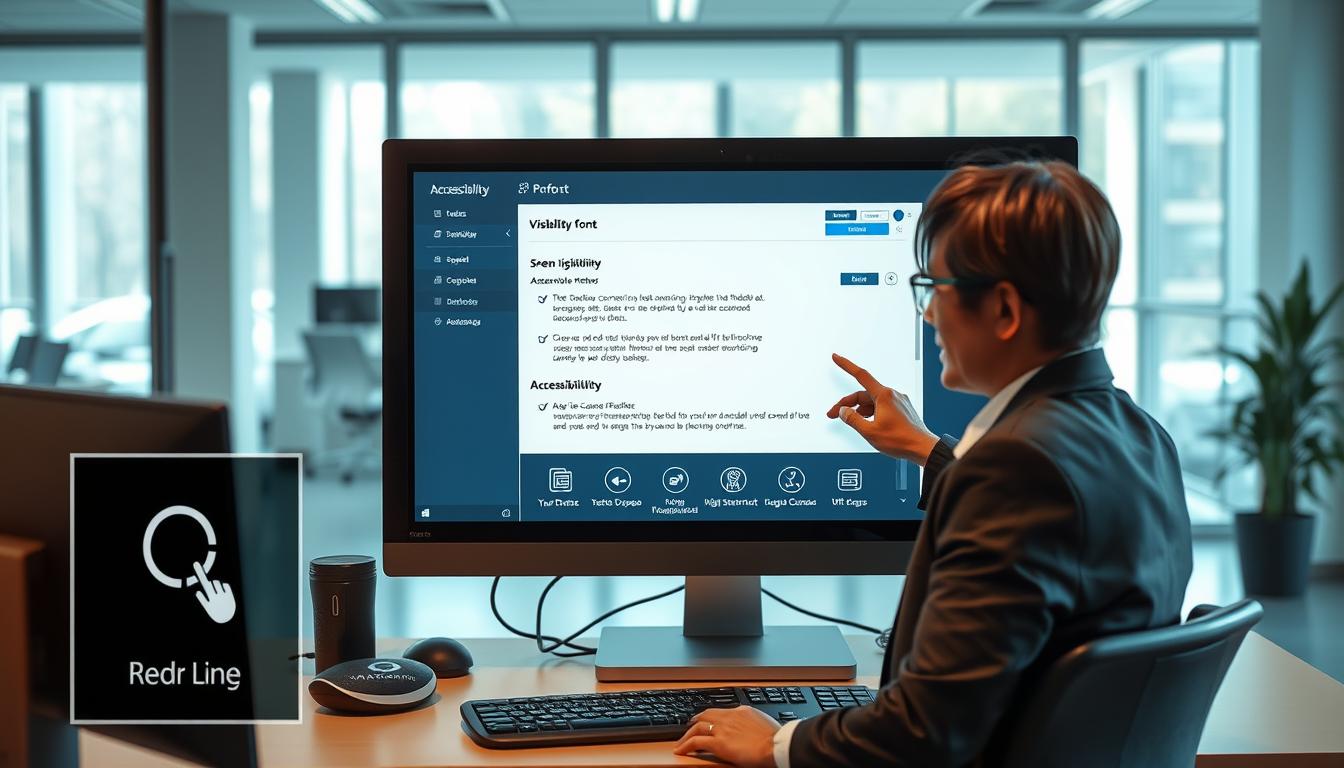
Accessibility Features That Improve Screen Visibility
Are you tired of squinting at your screen? Modern technology offers powerful tools to make your digital world clearer. These settings can transform how you see content on phones, tablets, and computers.
Whether you face low vision challenges or just want to reduce eye strain, the right adjustments make a big difference. This guide walks you through the most effective options available today. You will learn which tools work best for your specific situation.
We provide practical, step-by-step methods to customize your display. You can adjust text size, contrast, and even use magnification tools. Our advice comes from leading tech providers and experts, ensuring it’s accurate and actionable.
Your journey toward a more comfortable digital experience starts here. Gain the confidence to set up your devices for reduced visual fatigue and improved readability. Take control and see the difference.
Key Takeaways
- Modern devices have built-in settings that can significantly improve how you see your screen.
- Customizing text size and contrast can reduce eye strain and make reading easier.
- Magnification and color correction tools are available on most smartphones and computers.
- This guide provides step-by-step instructions tailored to your individual needs.
- Implementing these changes can lead to greater independence in your daily digital life.
- The advice is based on information from technology leaders and accessibility specialists.
- You can start making these helpful changes to your devices right away.
Introduction to Vision Accessibility
Navigating digital content becomes challenging when standard settings don’t align with your sight capabilities. Many individuals face daily struggles with screens that weren’t designed for their specific visual needs.
Understanding Low Vision and Visual Impairments
Low vision describes various sight conditions that regular glasses cannot fully correct. People with these visual impairments often find typical device settings inadequate for comfortable viewing.
You might notice increasing difficulty reading text on screens despite wearing corrective lenses. These sight challenges come in different forms—some affect color perception, while others impact contrast sensitivity or require larger fonts.
Common Screen Visibility Challenges
Many individuals encounter specific obstacles when using digital devices. Reading small website text, distinguishing similar colors, and identifying screen icons represent frequent difficulties.
Conditions like macular degeneration or glaucoma often necessitate specialized display adjustments. The good news is that modern technology includes built-in tools specifically designed to address these common visibility problems.
Understanding your unique sight requirements helps you select the right combination of settings. This knowledge transforms frustrating screen time into productive digital experiences.
Why Accessibility Matters for Your Digital Experience
Have you ever considered how much of your day revolves around interacting with a screen? From checking emails to connecting with loved ones, your ability to see digital content clearly is fundamental. When your display settings are optimized, your entire interaction with technology becomes smoother and more enjoyable.
Impacts on Daily Navigation
Simple online tasks can become major hurdles without the right display adjustments. You might struggle to read news articles or find it hard to navigate a website’s menu. This can lead to frustration and cause you to avoid certain digital activities altogether.
Properly configured settings change this dynamic entirely. You gain the confidence to explore the internet and use your computer without constant strain. This independence is crucial for staying informed and connected in today’s world.
Personal and Professional Benefits
The advantages extend into every part of your life. Personally, you’ll experience less eye fatigue and spend more time actually enjoying online content. This leads to a better quality of life and reduces daily stress.
In your career, these tools are equally powerful. They enable you to work efficiently with documents and communicate clearly with colleagues. This support helps maintain your productivity and professional independence. Investing time in these settings is an investment in your long-term ability to thrive digitally.
Implementing Accessibility Features for Vision Issues
Modern mobile technology includes remarkable display adjustments designed for better viewing. These built-in settings help you customize how you see your phone’s content.
Your devices come ready with helpful tools that address various sight requirements. You don’t need special apps or expensive software to get started.
Overview of Key Features
Smartphones offer comprehensive solutions for improving screen visibility. You can adjust text size, increase contrast, and apply color filters.
Magnification tools let you zoom in on specific areas of your display. Screen readers provide audio feedback for navigating your device.
These options work across all your apps and web content automatically. Once configured, they enhance your entire digital experience.
Immediate Benefits You Can Experience
You’ll notice reduced eye strain during extended screen time almost immediately. Reading text becomes more comfortable without constant squinting.
Better distinction between screen elements helps you navigate apps confidently. Many users report dramatic improvements after enabling just a few settings.
The setup process is straightforward and requires no technical expertise. You can experiment with different combinations to find what works best for your needs.
Customizing Display Settings for Better Readability
Your device’s display holds the key to a more comfortable viewing experience. Simple changes to text and color settings can make a world of difference.
You can tailor your screen to match your personal preferences. This process is straightforward and brings immediate benefits.
Adjusting Font Size and Contrast
Increasing your font size is often the most impactful first step. Larger text makes reading easier and reduces the need to squint.
You can adjust the text size globally in your device settings. This change applies to messages, menus, and most web pages.
High-contrast mode is another powerful tool. It makes screen elements stand out sharply against their background. This creates clearer boundaries that are simpler for your eyes to process.
Optimizing Colors and Backgrounds
Color adjustments offer significant relief, especially during long sessions. Switching to a dark background with light text can greatly reduce strain.
Tools like Android’s Reading mode let you tweak color and contrast for articles. You get control without altering the original content.
Bold text options add weight to characters, improving definition. Experiment with different combinations of size, contrast, and color to find your ideal setup.
| Setting | Primary Benefit | Where to Find It | Best For |
|---|---|---|---|
| Font Size | Makes text larger and easier to read from a distance. | Display or Accessibility settings. | Reading messages, articles, and menus. |
| High Contrast | Sharpens the distinction between text and background. | Accessibility or Vision settings. | Navigating apps and distinguishing icons. |
| Dark Mode / Color Inversion | Reduces glare and eye fatigue in low light. | Display settings or quick settings panel. | Evening use and extended reading sessions. |
| Bold Text | Thickens characters for better visibility. | Display or Accessibility settings. | Thin or lightweight font styles. |
Leveraging Audio Assistance and Screen Readers
Audio tools open up new ways to experience your phone without relying solely on your eyes. These speaking functions transform how you interact with digital content when visual reading becomes challenging.
Your device can narrate everything from notifications to button labels. This audio support provides flexibility during long sessions or when multitasking.
Using TalkBack and Similar Tools
TalkBack is Android’s built-in screen reader that announces everything on your display. You hear notifications like “Your battery’s at 10%” and navigate using customizable gestures.
iPhone offers similar functionality through its built-in tools. Both systems support braille displays for tactile reading methods.
These screen readers provide detailed information about every element. You never miss important content with comprehensive audio feedback.
Voice Feedback and Read Aloud Options
Android’s Reading mode includes a read aloud feature for articles and emails. This lets you listen to long text while resting your eyes.
You can adjust speaking rate, voice selection, and audio levels. This creates a personalized listening experience that feels natural.
Audio assistance gives you flexibility to consume information in your preferred way. Switch between visual reading and audio based on your needs.
Enhancing Visuals with Magnification and Color Correction
Your phone’s camera can serve as a powerful magnifying glass for real-world objects. This practical tool helps you read small print or examine details up close.
Modern devices offer built-in tools that significantly improve how you see content. These options work together to create a personalized viewing experience.
Built-in Magnifiers and Zoom Features
Magnification tools let you zoom in on any part of your screen with precision. You can enlarge text, images, or interface elements for clearer viewing.
Android devices include powerful magnification options in their settings. Your iPhone can function as a physical magnifier using its camera.
This makes even the smallest details large enough to see comfortably. You gain better control over what appears on your display.
Utilizing Dark Mode and Color Inversion
Color correction adjusts how colors appear on your screen. This helps if you have difficulty distinguishing certain color combinations.
Dark mode provides a consistent dark background across apps. Color inversion flips your screen’s color scheme for better readability.
These adjustments reduce visual strain during extended use. They create a more comfortable experience in various lighting conditions.
| Enhancement Type | Primary Function | Best Use Cases | Device Availability |
|---|---|---|---|
| Screen Magnification | Zooms in on display content | Reading small text, viewing details | Android, iPhone, computers |
| Camera Magnifier | Enlarges real-world objects | Reading labels, examining items | iPhone primarily |
| Dark Mode | Dark background with light text | Low-light environments, reducing glare | All modern devices |
| Color Inversion | Reverses color scheme | Improving contrast, color differentiation | Android, iPhone accessibility settings |
Step-by-Step Setup on Your Devices
Taking command of how you see content on your phone requires just a few taps in the right places. Both Android and iPhone systems offer straightforward paths to customize your viewing experience.
You can quickly locate the tools that make reading easier and reduce eye strain. The process is designed to be intuitive for all users.
Configuring Accessibility on Android
Start by opening your Settings app and finding the Accessibility section. This area contains comprehensive options designed to support various viewing needs.
You’ll discover controls to adjust font and display size with simple sliders. Bold text and high-contrast mode create sharper, clearer text.
Dark mode and color inversion settings help reduce glare during extended use. Magnification tools let you zoom in on specific screen areas when needed.
Setting Up Features on iPhone
iPhone users begin by navigating to Settings and selecting Accessibility. Vision-related tools appear at the top for immediate access.
VoiceOver provides spoken feedback while Zoom offers screen magnification. Display & Text Size adjustments let you customize how content appears.
Color filters help distinguish elements if you have difficulty with certain hues. Each option can be toggled on or off with a single switch.
Consider enabling the accessibility shortcut for quick access to your preferred settings. This lets you activate tools with a simple gesture like triple-clicking your home button.
Your choices remain consistent across all apps and functions. Experiment freely since you can always revert any changes that don’t work for you.
| Device Type | Navigation Path | Key Adjustments Available | Quick Access Method |
|---|---|---|---|
| Android | Settings > Accessibility | Font size, contrast, magnification, color correction | Accessibility menu or shortcut |
| iPhone | Settings > Accessibility | Display size, text boldness, zoom, voiceover | Triple-click side button |
| Both Systems | Easy menu navigation | Dark mode, high contrast, reading modes | Customizable shortcuts |
Exploring Advanced Low Vision Tools and Resources
Your smartphone can become an intelligent companion with powerful applications designed to describe the world around you. These advanced solutions go beyond basic display adjustments to provide comprehensive support.
Digital Tools like Lookout and Reading Mode
Lookout is an AI-powered Android application that uses your phone’s camera to identify nearby objects. It provides audio descriptions for items like mail, groceries, and social media images.
The Image Q&A feature generates detailed descriptions and answers follow-up questions. You can ask about any picture using voice commands or typing.
Reading Mode for Android lets you customize long articles with adjustable contrast, color, and font size. This includes a read-aloud option for comfortable listening.
Accessing Resource Centres and Community Support
Local societies for visually impaired individuals often maintain resource centers with demonstration equipment. You can try useful items like talking watches and large-print books.
Larger centers showcase high-tech equipment including electronic magnifiers and talking scanners. Staff members help you find solutions tailored to your specific needs.
Community connections provide practical advice from people who understand daily challenges. Many advanced tools are available through free or low-cost programs.
| Tool Type | Primary Function | Key Benefits | Availability |
|---|---|---|---|
| Lookout App | Object identification and image description | Audio feedback for surroundings and social media | Android devices |
| Reading Mode | Text customization and audio reading | Adjustable display settings for long content | Android accessibility |
| Resource Centers | Equipment demonstration and testing | Hands-on experience before purchase | Local organizations |
| Community Support | Peer advice and experience sharing | Practical tips from real-world usage | Support groups and networks |
Conclusion
With the knowledge you’ve gained, your digital world becomes much clearer and more comfortable. You now understand how to customize your devices for better screen visibility.
From adjusting text style and size to using screen readers and magnification tools, you have powerful options. These elements make content easier to see and interact with on your computer and other devices.
The time invested in proper setup pays off daily with reduced eye strain. People with visual impairments can enjoy greater independence when accessing internet content.
Remember that finding the right settings is an ongoing process. As your needs change, you can continue adjusting for optimal comfort. Millions of users worldwide have transformed their digital experience through these helpful tools.