
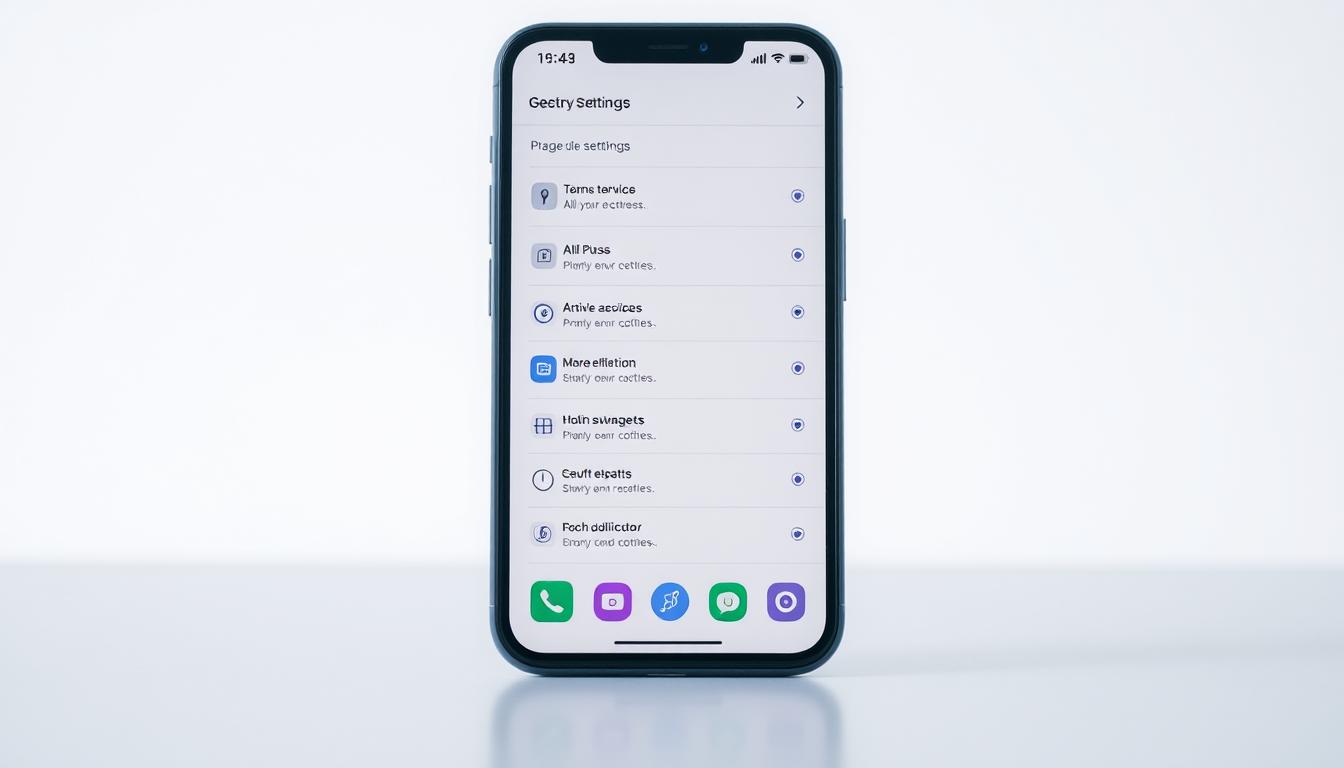
How to Simplify a Smartphone Screen for Easier Daily Use
Many older adults feel overwhelmed by today’s complex mobile devices. The small text, confusing menus, and constant notifications can make technology feel like a barrier rather than a helpful tool. This guide shows you how to transform that experience.
You can make significant improvements to any modern device, whether it’s an iPhone 16 or a Pixel 10 Pro XL. The process focuses on removing unnecessary complexity while maintaining essential functions. Your loved one will appreciate having a device that feels comfortable and intuitive to use.
Customizing a regular phone often works better than buying specialized senior models. Standard devices offer more features and better long-term value when properly configured. This approach helps older users stay connected with family and access important services confidently.
Key Takeaways
- Strategic adjustments can make any modern phone more accessible for older adults
- Both iPhone and Android devices can be customized for better usability
- Regular smartphones often provide better functionality than specialized senior phones
- Simplifying the interface reduces anxiety and builds confidence with technology
- Practical changes can be implemented immediately for noticeable improvement
- The goal is to maintain independence through thoughtful customization
- Proper setup transforms daily phone use from frustrating to empowering
Understanding the Unique Needs of Seniors
Elderly users encounter specific obstacles when interacting with contemporary digital interfaces. While technology offers incredible convenience for connecting with loved ones and accessing services, many older adults find these tools overwhelming rather than helpful.
Age itself doesn’t prevent learning new technology. However, certain age-related changes can make navigating digital systems more challenging. Vision changes, reduced dexterity, and different learning patterns all affect how older people interact with devices.
The relationship with technology differs significantly between generations. Younger users grew up with digital devices as natural parts of their environment. For many seniors, these tools represent unfamiliar territory that requires patient guidance.
Technology anxiety often stems from design that overlooks specific user requirements rather than inability to learn. What seems intuitive to you may feel completely foreign to your elderly loved ones.
Maintaining digital connection becomes increasingly important as people age. When physical mobility decreases, devices serve as vital lifelines to family and essential services. Effective customization requires balancing assistance with preserving independence and dignity throughout this process.
Assessing Smartphone Challenges for Older Adults
Digital interfaces present unique hurdles for aging individuals that require careful assessment before making adjustments. Recognizing these obstacles helps you create effective solutions.
Identifying Common Technical Roadblocks
Many modern devices feature complex menu systems that confuse older adults. Hidden settings and inconsistent navigation patterns create frustration.
Overwhelming notification systems and poorly designed apps add to the difficulty. These technical barriers prevent smooth interaction with essential functions.
Understanding Cognitive and Dexterity Issues
Cognitive load increases when devices present too many choices at once. Seniors and other users struggle with multi-step processes that demand strong memory.
Physical challenges like arthritis or tremors make precise gestures difficult. Small touch targets become hard to manage over time.
Psychological barriers often prove just as significant as physical limitations. Fear of making mistakes prevents exploration and learning.
Poor design choices disproportionately affect older individuals. Identifying these specific challenges allows for targeted solutions rather than generic fixes.
Essential Accessibility Settings and Features
Hidden within your device’s menu system are powerful customization options that can dramatically improve readability. Both major mobile platforms include comprehensive accessibility features designed to support users with various needs.
These built-in tools address vision, hearing, and mobility challenges effectively. Many people overlook these valuable settings simply because they don’t know they exist.
Increasing Font Size and High Contrast Options
Adjusting text size is one of the most impactful changes you can make. On Android devices, navigate to Settings, then Display and touch, and select Display size and text.
Use the slider to increase the font size to a comfortable level. iPhone users should go to Settings, Display & Brightness, then Text Size for basic adjustments.
For even larger text on iOS, visit Settings, Accessibility, Display & Text Size, and tap Larger Text. High contrast options further enhance visibility by creating clearer distinctions between elements.
Enabling Assistive Touch and Simplified Display Features
Assistive touch features provide alternative ways to interact with your device. These tools reduce the need for complex gestures or precise tapping motions.
Simplified display settings minimize visual clutter and distractions. They present information in cleaner, more digestible formats that are easier to navigate.
These accessibility settings benefit anyone who finds standard interfaces challenging. Proper configuration transforms daily device use from frustrating to manageable.
Simplifying Smartphone Screens for Seniors
Strategic organization of digital elements can transform how people interact with technology. A clutter-free interface reduces mental strain and makes essential functions easily accessible. This approach benefits all users but particularly helps older individuals navigate their devices with confidence.
The benefits of a clean, intuitive layout
A well-organized display minimizes cognitive overload. When fewer choices compete for attention, users can focus on what matters most. This clarity reduces anxiety and builds trust in the technology.
Thoughtful arrangement of applications creates immediate visual hierarchy. Essential tools should occupy prominent positions while secondary functions remain accessible but less prominent. This prioritization respects the user’s intelligence while accommodating specific needs.
Determining which programs deserve prime real estate requires careful consideration. Remove unused applications that add visual noise without providing value. Keep only the tools your loved one will regularly use.
Consistent placement of important icons supports memory and navigation. Group related functions together to create logical patterns. This organization makes the device feel familiar and predictable.
Balancing simplicity with functionality ensures the technology remains useful. The goal is not to remove capabilities but to highlight essential features. A clean layout empowers independent use while maintaining full device potential.
Customizing the Home Screen for Ease of Use
The home screen serves as the primary gateway to all device functions, making its organization crucial for comfortable navigation. A clean layout reduces visual stress and helps users find what they need quickly.
Removing Cluttered Icons and Apps
Start by eliminating unnecessary applications from the main display. On Android devices, tap and hold any icon, then drag it to the Uninstall or Remove area at the top.
iPhone users should tap and hold on the home screen until icons wiggle. Tap the X to delete unwanted apps or drag them to rearrange. This creates a cleaner visual environment.
Organizing Frequently Used Apps and Contacts
Place essential tools in prominent positions for easy access. Create direct contact shortcuts that allow single-tap calling or messaging.
On Android, tap and hold the home screen, select Widgets, then choose Contacts. Pick Direct Dial or Direct Message to add shortcuts. Group related applications together logically.
This organization method transforms the interface from confusing to purposeful. It supports memory and reduces navigation frustration.
| Action | Android Steps | iPhone Steps |
|---|---|---|
| Remove Apps | Tap/hold icon → Drag to Remove | Tap/hold screen → Tap X on icon |
| Rearrange Icons | Tap/hold → Drag to new position | Tap/hold → Drag while wiggling |
| Contact Shortcuts | Widgets → Contacts → Direct Dial | Add to Favorites → Home Screen |
| App Grouping | Create folders by dragging together | Drag app onto another to make folder |
Involve the user in customization decisions when possible. This ensures the final layout meets their actual needs and preferences.
Optimizing Touchscreen Sensitivity and Accidental Touch Protection
Unpredictable screen behavior can be a major source of frustration for older users. Accidental touches in a pocket or bag can open apps or change settings, making the device seem broken.
You can prevent this by enabling accidental touch protection. This feature stops the screen from responding when sensors detect it is covered.
On many Android models like Samsung, find this in Settings > Display. Toggle “Accidental touch protection” on. This simple step prevents many unintended actions.
You can also adjust how sensitive the screen is to touch. Some users have a lighter touch due to skin changes. Increasing sensitivity ensures taps register correctly.
Fine-tuning these settings is especially helpful for individuals with tremors or reduced motor control. It creates a balance between responsiveness and prevention of mistakes.
| Feature | Android | iPhone (iOS) |
|---|---|---|
| Accidental Touch Protection | Settings > Display > Accidental touch protection | Built-in proximity sensor; no direct toggle |
| Adjust Touch Sensitivity | Settings > Display > Touch sensitivity | Settings > Accessibility > Touch > Touch Accommodations |
| Require Longer Press | Varies by model | Settings > Accessibility > Touch > Hold Duration |
This configuration gives users confidence. They know the device will only respond to deliberate interactions. It is a reliable way to improve daily use.
Setting Up Voice Commands and Assistant Functions
For individuals who find touchscreens challenging, spoken instructions provide a powerful alternative for device control. This hands-free help can dramatically change how your loved one uses their device.
Many people process audio cues more easily than written text. Voice interaction feels more natural and reduces the cognitive load of remembering menu locations.
Activating the assistant is the first step. On an iPhone, go to Settings, then Siri & Search, and toggle on “Listen for ‘Hey Siri'”.
For Android devices, open the Google app, tap your profile, go to Settings, Google Assistant, and then “Hey Google & Voice Match”. Follow the prompts to train the voice model.
This setup allows your loved one to make calls, set reminders, or ask questions without touching the screen. Essential tasks become instantly accessible.
| Task | Voice Command Example | Function |
|---|---|---|
| Make a Call | “Call [Contact Name]” | Dials the number directly |
| Set a Reminder | “Remind me to take medicine at 3 PM” | Creates a calendar alert |
| Get Information | “What’s the weather today?” | Provides an immediate answer |
Focus on teaching a few key commands first. This prevents overwhelm and builds confidence. Mastering three or four phrases offers significant daily help.
Optimizing the assistant’s settings improves access.
You can adjust for speech clarity or pace. This ensures the technology understands your loved one reliably.
Configuring Emergency Contacts and Safety Features
Your mobile device can serve as a crucial safety tool when properly configured with emergency features. These built-in functions provide immediate assistance during urgent situations.
Setting up SOS and emergency alerts
Android users can activate emergency SOS by going to Settings, then Safety and emergency. Enable the feature that calls 911 when pressing the power button five times quickly.
iPhone owners should visit Settings, then Emergency SOS. Toggle on “Call with 5 Button Presses” for rapid emergency access. This automatically contacts services and notifies your emergency contacts.
Adding medical and location tracking information
On Android devices, navigate to Settings, Safety and emergency to enter medical details. Include blood type, medications, and allergies for first responders.
iPhone users should open the Health app, tap their profile, and select Medical ID. Add critical health information and emergency contacts here. This data remains accessible even when the device is locked.
| Feature | Android Setup | iPhone Setup |
|---|---|---|
| Emergency Contacts | Settings > Safety & Emergency > Add contacts | Health app > Medical ID > Add emergency contact |
| SOS Activation | Press power button 5 times quickly | Press power + volume or power button 5 times |
| Medical Information | Settings > Safety & Emergency > Medical info | Health app > Medical ID > Edit |
| Location Sharing | Google Maps > Location sharing | Find My > Share My Location |
Testing these features ensures confidence during real emergencies. Practice activation with your loved one to build familiarity. This preparation transforms the device into a reliable safety companion.
Choosing the Right Phone and Layout for Seniors
Selecting the right mobile device is a foundational step toward creating a comfortable digital experience. While specialized “senior phones” exist, a standard iPhone or Android phone with thoughtful customization typically offers superior functionality and longevity.
These specialized devices often have limited capabilities. A well-configured regular phone provides better long-term value.
You might already own a suitable device. An old phone in a drawer can be perfectly adequate after proper setup. This approach saves money while delivering a quality tool.
If purchasing a new device is necessary, focus on a few key factors. Screen size is critical for readability. Larger displays are easier to see and interact with.
Consider the weight and portability of a larger phone. Button placement and operating system familiarity are also important. The “right” device matches your loved one’s specific needs and comfort level.
The best choice is not always the newest or most feature-rich model. It is the one that feels intuitive and reliable for daily use.
| Consideration | iPhone | Android Phones |
|---|---|---|
| OS Familiarity | Ideal if user has prior experience with Apple products | Better if user is familiar with Google or Samsung interfaces |
| Customization Options | Consistent, streamlined experience across models | Wide variety; features differ by manufacturer (Samsung, Pixel, etc.) |
| Screen Size Availability | Range from standard to large Plus/Max models | Extensive range, often with very large display options |
Investing time in proper setup is more valuable than buying a limited-function device. This ensures the technology truly supports independence.
Utilizing Customized Launchers and Easy Mode Options
Custom launchers transform standard mobile interfaces into senior-friendly environments with minimal effort. These powerful tools replace complex menus with straightforward layouts designed for clarity.
Exploring Android’s Easy Mode and Alternative Launchers
Samsung devices include built-in Easy Mode. Find this option in your Display settings. It instantly increases icon size and text for better visibility.
Third-party launchers like Simple Launcher offer even more customization. These applications provide extra-large icons and reduced menu complexity. They maintain full functionality while presenting it more accessibly.
Using iPhone’s Assistive Access for Simplified Layouts
Navigate to Settings, then Accessibility to find Assistive Access. Associate an Apple account during setup. Choose between Rows or Grid layout options.
The Rows option displays applications in a list with enlarged text. Grid layout resembles the standard display but with bigger icons. Select only essential apps your loved one needs.
Password protection prevents accidental changes to your configuration. Press the side button three times and enter your passcode to exit this mode. This ensures stable access to the simplified interface.
Adjusting Font Size, Icon Size, and Display Settings
Visual clarity is essential for comfortable device interaction, especially when dealing with small text and icons. These adjustments create immediate improvements in readability and accuracy.
Follow these platform-specific steps to optimize visual elements. The process takes just minutes but delivers significant benefits.
Android Configuration Steps
On Samsung devices, navigate to Settings, then Display. Select “Font size and style” to adjust the slider. You can also enable bold font for better contrast.
iPhone Configuration Steps
For font adjustments, go to Settings, Accessibility, then “Display and Text Size.” Tap “Larger Text” and drag the slider. To increase icon size, long-press the home screen, tap Edit, then Customize, and select Large.
Larger touch targets reduce frustration from missed taps. Bigger icons are easier to see and select accurately.
| Adjustment | Android Path | iPhone Path | Key Benefit |
|---|---|---|---|
| Font Size | Settings > Display > Font size | Settings > Accessibility > Larger Text | Improved reading comfort |
| Icon Size | Varies by launcher | Home screen edit > Customize > Large | Easier tapping accuracy |
| Bold Text | Font size menu > Bold toggle | Display & Text Size > Bold Text | Enhanced contrast |
Test different settings with your loved one to find the optimal balance. Some apps have independent text size controls that may need separate configuration.
These visual changes are among the most impactful modifications you can make. They transform daily device use from challenging to manageable.
Enhancing Audio Alerts and Notification Settings
Missing an important call from family can be a source of anxiety for older users. This often happens when alert volumes are too low or the sounds are unfamiliar. Properly configuring these settings ensures your loved one never misses a connection.
Effective notification management combines sound, vibration, and visual cues. This multi-layered approach works in various environments. It provides reliable alerts for calls, messages, and reminders.
Setting Appropriate Ringtones and Vibration Alerts
Choose ringtones that are distinct and easily recognized. Avoid modern, subtle tones that blend into background noise. A classic telephone ring or a simple melody is often best.
Configure strong vibration patterns for tactile feedback. This is crucial when the device is in a pocket or bag. A powerful buzz can be felt even if the sound is missed.
Adjusting Volume Settings for Clarity
Set volume levels higher than you might think necessary. Test the ringtone in a room with typical household noise. The goal is audibility during daily activities, not just in silence.
Explore specialized options for hearing support. The LED flash alert is a valuable visual feature for incoming calls. It provides a clear signal when sound alone is not enough.
| Configuration Task | Android Path | iPhone Path |
|---|---|---|
| Adjust Ringtones & Volume | Settings > Sound and vibration | Settings > Sounds & Haptics |
| Set Vibration Strength | Sound and vibration > Vibration and haptics | Sounds & Haptics > Haptics > Always Play |
| Enable LED Flash Alerts | Settings > Accessibility > Hearing enhancements | Settings > Accessibility > Audio/Visual > LED Flash for Alerts |
Always test the final settings with the user present. Confirm they can hear and feel the alerts clearly. This simple step builds confidence in using the phone.
Implementing Security and Anti-Phishing Measures
Protecting your loved one from digital threats requires both technical safeguards and open conversations. Scammers often target older adults with sophisticated phishing attempts.
Begin by discussing common tactics like fake tech support calls and urgent messages pretending to be from family. This education builds awareness alongside technical protections.
Enable two-factor authentication for important accounts. This adds an extra layer of security even if passwords become compromised.
Consider installing dedicated security applications. Malwarebytes Security for Android and Malwarebytes Mobile Security for iPhone provide active protection against malware and phishing links.
These apps operate automatically without requiring technical knowledge from the user. They block suspicious websites and warn about dangerous content.
On Samsung devices, activate the built-in Auto Blocker feature. Navigate to Settings, then Security and Privacy, and toggle Auto Blocker to On.
This setting automatically blocks installations from unknown sources. It only allows apps from trusted stores like the Galaxy Store or Play Store.
Auto Blocker also prevents unauthorized software updates and blocks malware images in messaging apps. This comprehensive approach protects against multiple threat vectors.
Configure warning systems for potentially dangerous emails and messages. Balance protection with communication freedom by allowing legitimate contacts.
Regular security conversations combined with these technical measures create a robust defense system. Your loved one can use their device confidently while staying protected from digital threats.
Leveraging Remote Support Tools for Setup Assistance
Distance should not be a barrier to providing technical help to your loved ones. Remote support tools offer a powerful solution for configuring a mobile device from anywhere. These applications let you take control and make adjustments directly.
This eliminates the frustration of guiding someone through complex settings over the phone. You can provide immediate help without needing to be physically present. It is an ideal solution for family members who live far away.
How DeskIn Enables Remote Assistance
DeskIn is a remote access app designed for ease of use and security. It allows you to operate another person’s phone to complete setup steps quickly. This saves considerable time and effort for everyone involved.
The application offers several key features that make it an excellent choice for this task. Its compatibility and communication tools are particularly valuable for providing clear support.
| Feature | Description | Benefit |
|---|---|---|
| Cross-Platform Compatibility | Use Mac, iPhone, or Android to control an Android phone or view an iPhone screen. | Provides flexible help using any device you have on hand. |
| Built-in Communication | Includes voice call and annotation functions during the remote session. | Allows you to guide and teach while making changes. |
| Secure Connection | Control is only possible under the same account, with manual or password verification. | Prevents unauthorized access to your loved one’s device. |
| Stable Performance | Offers low latency with no connection time limits and high-quality video. | Ensures a smooth, uninterrupted support experience. |
Setting up this remote support tool is straightforward. First, install the DeskIn app on both your device and your family member’s phone. Log in to the same account on both devices.
When you need to provide help, your loved one simply toggles the “Allow remote control” button. You then find their phone in your device list and click Connect. This secure access lets you operate their phone directly to configure settings or solve problems.
Hands-On Tutorials to Build Confidence
After customizing the interface, the real work begins with teaching practical skills through patient demonstration. Technical setup provides the foundation, but genuine confidence comes from guided practice sessions.
Providing practical demonstrations and training
Show rather than tell when explaining how the device works. Demonstrate basic functions like answering calls or sending messages while your loved one watches. Then have them try the same actions with your guidance.
Break tasks into simple, repeatable steps. Focus on one function at a time to prevent overwhelm. Practice makes these actions become automatic over time.
Create a “practical exam” where your family member demonstrates key functions back to you. This approach identifies understanding gaps and reinforces learning through active participation.
What seems obvious to experienced users may be completely new to others. Patience and repetition are essential for building genuine comfort with the technology.
Develop simple reference materials they can consult later. Written instructions or pictorial guides provide valuable support when you’re not available to help.
Celebrate small successes and normalize mistakes. Everyone struggles with technology sometimes. Errors become learning opportunities rather than failures.
Staying Updated with Software Enhancements and Safety Updates
Regular software maintenance is essential for keeping your family member’s phone secure and functional over the long term. These updates provide critical protection against newly discovered vulnerabilities.
Operating system updates deliver security patches that block potential threats. They also fix bugs and sometimes introduce new accessibility features. Consistent updating ensures the device remains safe and effective.
Enable automatic updates when possible for continuous protection. During regular check-ins, manually verify that recent updates installed correctly. This proactive approach prevents security gaps.
Major updates can change interface elements or settings locations. After installation, review configurations to ensure everything works as intended. This maintains the familiar experience your loved one relies on.
Remote monitoring tools help track update status from anywhere. They alert you if issues emerge that might cause confusion. This ongoing support adapts as needs evolve over time.
Balance security with interface consistency. Too many changes can undermine confidence. Strategic updates protect without disrupting daily comfort.
Conclusion
When properly configured, modern mobile technology becomes a bridge to connection rather than a barrier to communication. This guide has equipped you with comprehensive strategies to transform any device into a senior-friendly tool.
The combination of technical adjustments and patient guidance creates a foundation for confident, independent use. Your investment in proper setup pays dividends in quality of life and safety.
Remember this is an ongoing process of refinement as your loved one’s needs evolve. Regular check-ins help identify what works well and what needs adjustment.
Modern devices, when configured thoughtfully, become powerful tools for maintaining independence and meaningful relationships. They provide access to essential support while respecting autonomy.
You now have everything needed to create a device that genuinely enhances daily life. Your family member can stay connected through calls and photos with confidence and dignity.