
Reducing Repetitive Motion Using Smart Tools
Do you ever feel a dull ache in your wrists after a long day at the computer? Many people experience this discomfort. Modern work often involves extended periods of screen time and keyboard use.
This guide is your friendly introduction to a smarter way of working. We will explore how the right tools can protect your long-term health. The goal is to create a more comfortable and sustainable daily routine.
You will learn practical strategies for your workplace. These approaches combine intelligent software and ergonomic equipment. The focus is on proactive prevention rather than reacting to pain.
By the end of this article, you will have a clear plan. You can start making positive changes immediately. This knowledge empowers you to take control of your well-being during computer work.
Key Takeaways
- Modern computer work can lead to physical strain from repetitive tasks.
- Smart technology offers practical solutions to minimize this workplace discomfort.
- Understanding the link between motion and injury is key to proactive health prevention.
- Evidence-based strategies combine ergonomic tools and workplace adjustments.
- Actionable recommendations are effective for both office and remote work settings.
- Technology can be a source of strain but also a powerful solution for protection.
- Implementing these changes enhances overall comfort and long-term wellness.
Understanding Repetitive Motion and Its Impact
Many office jobs involve actions we perform hundreds of times a day, often without realizing the toll they take. These small, repeated movements are a primary cause of physical strain for many workers.
Let’s break down what this means for your health and your work environment.
Defining Repetitive Strain Injuries
Repetitive Strain Injuries, or RSIs, are conditions caused by overusing a part of your body. They develop when you perform the same tasks again and again. This constant activity creates micro-damage that accumulates over time.
Your body needs breaks to heal this minor damage. Without proper recovery, discomfort can turn into a chronic issue.
Common Causes and Workplace Factors
Several key factors at your computer station contribute to RSI risk. Your posture is a major one. Slouching or hunching forward places extra stress on your muscles and joints.
Long hours without sufficient breaks prevent your body from repairing itself. Workplace stress also plays a role, causing tension that makes injury more likely.
The table below outlines common risk factors and their effects:
| Risk Factor | How It Affects You | Simple Example |
|---|---|---|
| Poor Posture | Increases muscle and joint strain | Slouching shoulders while typing |
| Inadequate Breaks | Prevents muscle recovery | Working for 4 hours straight |
| Non-Ergonomic Setup | Forces body into awkward positions | Monitor placed too low |
| Workplace Stress | Leads to muscle tension | Tight grip on the mouse |
Understanding these factors is the first step toward creating a healthier work routine. Addressing them can significantly improve your comfort.
Recognizing Early Warning Signs of RSIs
Your body often sends subtle signals before serious issues develop. Catching these early clues makes prevention much easier. Quick action can stop minor irritation from becoming a major problem.
Physical Symptoms to Watch For
Pay attention to persistent pain that lingers after work. If discomfort returns with specific tasks, take note. These are your first warning signs.
Tingling in your fingers or hands suggests nerve irritation. Numbness that worsens during computer use is another red flag. Your wrist may feel particularly vulnerable.
Muscle tenderness or weakness deserves your attention. A noticeable drop in grip strength indicates strain. Your body is asking for help through these symptoms.
Early detection is your greatest advantage. Simple adjustments work best when symptoms are fresh. Don’t ignore what your body tells you.
Using Ergonomic Technology for Reducing Repetitive Motion with Tech
Your workstation can become a supportive partner in health prevention through smart equipment choices. Research shows this approach is the most common and effective intervention for upper limb protection.
Specialized keyboards position your hands in natural alignments during computer use. They require less force for typing, minimizing daily strain. Alternative mouse designs like vertical models or trackballs also help.
These devices change how you interact with your computer. They transform potential injury sources into supportive tools. Your risk of developing painful conditions drops significantly.
Technology solutions extend beyond physical equipment. Software applications monitor your work patterns and suggest breaks. This comprehensive approach addresses both equipment and habits.
Investing in proper ergonomic equipment pays long-term dividends for your well-being. You create a workstation that accommodates your body’s natural movements. This proactive strategy focuses on prevention rather than reaction.
Integrating Smart Tools into Your Work Environment
Selecting equipment that fits your body and work style is the foundation of workplace wellness. The right tools create a supportive environment for long-term health.
Choosing the Right Ergonomic Equipment
Your work environment deserves personalized solutions. Standard office gear often fails to support individual needs effectively.
Look for adjustable chairs with lumbar support and seat height options. Sit-stand desks allow position changes throughout your day. These pieces of equipment adapt to your unique requirements.
Customization is key for maximum comfort. Test different models when possible before making decisions.
| Equipment Type | Key Features | Health Benefit |
|---|---|---|
| Adjustable Chair | Lumbar support, seat depth adjustment | Reduces lower back strain |
| Sit-Stand Desk | Electric height adjustment, memory presets | Promotes posture variation |
| Ergonomic Keyboard | Split design, negative tilt | Minimizes wrist extension |
| Vertical Mouse | Handshake grip position | Decreases shoulder rotation |
Consider how each piece integrates with your existing workplace setup. A cohesive environment supports natural body alignment during computer use.
This strategic approach to equipment selection builds a foundation for sustainable productivity. Your investment pays dividends in comfort and performance.
Ergonomic Workspace Setup Essentials
How you arrange your desk items can significantly impact your physical well-being throughout the workday. A thoughtful approach to your workstation design prevents unnecessary strain. This setup supports comfortable completion of daily tasks.
Your office environment should promote natural body alignment. Proper arrangement reduces the need for awkward movements. This strategic design makes your work more comfortable.
Adjusting Furniture for Optimal Posture
Your chair and desk position form the foundation of good posture. Adjust furniture to maintain neutral body alignment. This prevents stress on your back and shoulders.
Proper height adjustment is essential for comfort. Your feet should rest flat on the floor. Your knees should form a 90-degree angle.
Creating an Organized Workstation
The zone of comfort concept guides effective workstation organization. Place frequently used items within easy reach. This minimizes stretching and twisting movements.
Your primary work zone should contain essential tools. Keep secondary items in outer areas. This strategic design supports efficient movement patterns.
| Zone Type | Distance from Body | Recommended Items |
|---|---|---|
| Primary Zone | Approximately 16 inches | Mouse, phone, notepad, daily documents |
| Secondary Zone | 16-24 inches away | Stapler, calculator, reference materials |
| Storage Zone | Beyond 24 inches | Archives, supplies used weekly or monthly |
This organization system reduces muscle tension during long work periods. Your office setup becomes a supportive partner in health maintenance.
Optimizing Monitor and Keyboard Placement
Proper placement of your monitor and input devices can transform your daily computer experience. Strategic positioning supports natural body alignment and prevents unnecessary strain during extended work sessions.
Monitor Height and Viewing Distance
Position your monitor at eye level to maintain neutral neck posture. The top of your screen should align with your natural sightline when looking straight ahead.
Maintain approximately an arm’s length distance from your eyes to the monitor. This viewing distance reduces eye strain and encourages proper sitting posture throughout your workday.
Keyboard and Mouse Positioning Tips
Place your keyboard at elbow height to keep forearms parallel to the floor. This creates a straight line from elbow to fingertips, supporting comfortable wrist alignment.
Your wrists should maintain a neutral “handshake” position during typing. Keep hands floating lightly above the keyboard surface rather than resting heavily.
Position your mouse at the same height as your keyboard, close enough for relaxed arm positioning. This setup prevents shoulder fatigue and awkward bending motions that can lead to discomfort.
Correct equipment placement directly addresses key risk factors for upper limb injuries. These simple adjustments make significant differences in your daily comfort and long-term wellness.
Benefits of Standing Desks and Adjustable Workstations
The ability to change your physical position while working is a game-changer for long-term comfort. Static sitting can lead to stiffness and fatigue over time.
Adjustable workstations empower you to break this cycle. They transform a fixed desk into a dynamic environment that supports your body.
Start with short standing intervals of about 15 minutes. Gradually increase the duration as your body adapts to this new pattern.
This variation engages different muscle groups. It also reduces pressure on your spinal discs compared to prolonged sitting.
The real benefit comes from regular posture changes, not standing all day. Listening to your body and adjusting your position prevents discomfort from developing into pain.
| Workstation Feature | Primary Advantage | Impact on Your Health |
|---|---|---|
| Height-Adjustable Desk | Enables seamless sitting-standing alternation | Improves circulation and reduces back strain |
| Customizable Chair Settings | Accommodates your specific body dimensions | Promotes neutral spinal alignment and comfort |
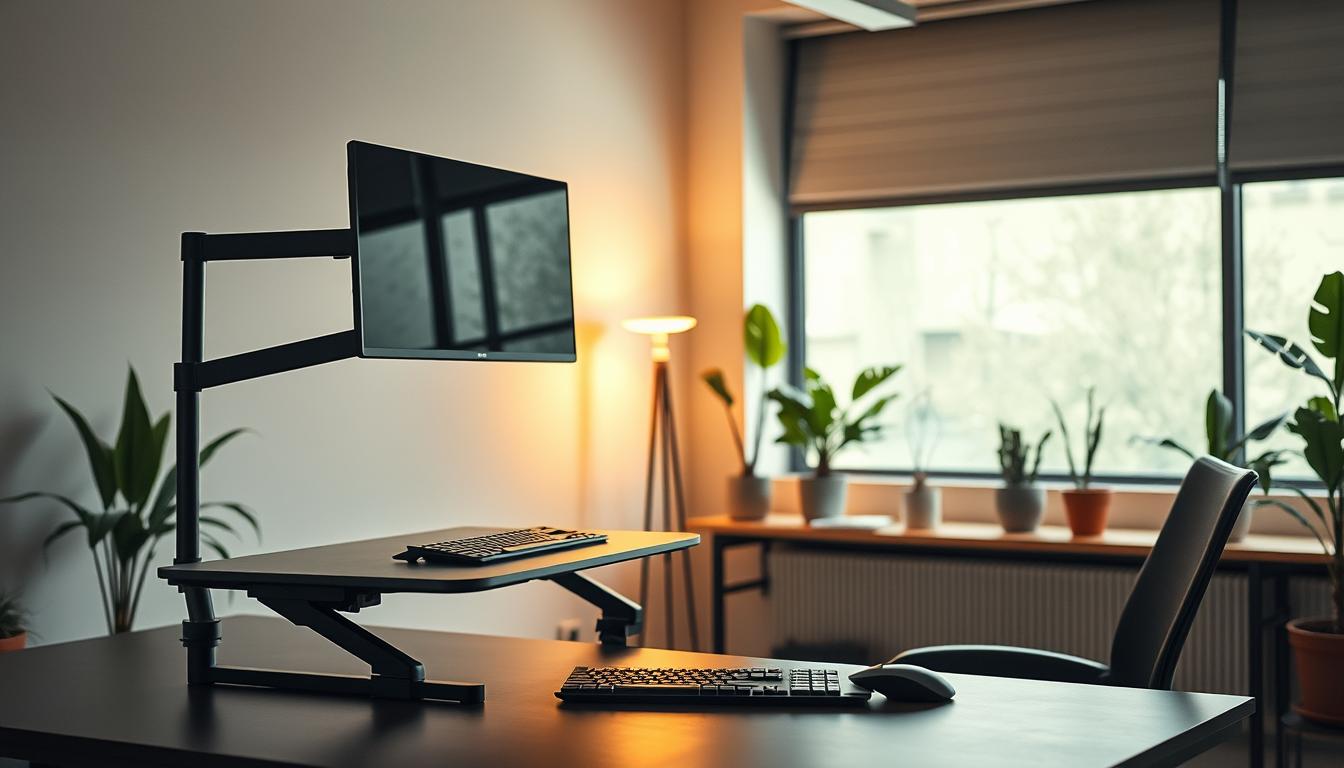
| Monitor Arm Adjustability | Allows optimal screen positioning in any posture | Prevents neck strain during extended computer work |
Your comfort throughout the day depends on this flexibility. An ergonomic setup that you can modify supports sustained well-being and energy levels.
Strategies for Computer-Related Muscle Tension Relief
That tight feeling across your shoulders after hours at your desk is more than just fatigue. Your muscles work continuously to maintain typing positions throughout your computer workday. This static loading creates tension that can develop into real discomfort.
Muscle tension often manifests as headaches radiating from your neck or shoulder blade stiffness. You might notice tingling in your arms from compressed nerves. Trigger points in your neck and upper trapezius muscles can refer pain to other areas.
When you notice tension building, take a brief moment to stretch. Simple movements integrated into your workflow provide immediate relief. Shoulder rolls between tasks or seated spinal twists during phone calls work wonders.
Gentle, frequent movement breaks offer more relief than waiting until day’s end. Ankle circles while reading emails prevent accumulated strain. These strategies help you manage muscle fatigue before it becomes chronic pain.
Understanding this connection empowers preventive action. You can address developing tension before discomfort becomes debilitating. Your computer work becomes more sustainable with these simple practices.
Implementing Regular Movement and Breaks
Short, frequent breaks throughout your workday can dramatically improve your comfort and focus. These pauses give your body essential recovery time from static positions.
Many people overlook the power of brief interruptions in their workflow. Yet these moments of movement provide significant protection against strain.
Micro-Breaks and Desk Exercises
Schedule 30-60 second pauses every 20-30 minutes during your work periods. These micro-breaks reset your muscles without disrupting productivity.
Try simple stretches right at your desk. Extend your arms forward and flex your wrists gently. Rotate your neck slowly from side to side.
Every hour, take a longer 2-3 minute movement break. Stand up and walk around your workspace. Perform calf raises to activate circulation.
Regular breaks prevent fatigue from continuous computer tasks. They maintain your energy levels throughout extended work sessions.
Despite their effectiveness, many workers underestimate these recovery periods. Proactive scheduling ensures your body gets the rest it needs.
Ergonomic Training and Support Programs
A truly effective approach to workplace wellness extends beyond just equipment; it requires a foundation of knowledge and shared responsibility. Proper training initiatives empower your team to use their tools correctly and understand the principles behind them.
This education builds a culture where everyone contributes to a safer environment. It turns individual effort into a collective success.
Tailored Employee Training Initiatives
Generic advice often falls short. Your employees benefit most from sessions tailored to their specific roles and tasks. This personalized approach makes the guidance immediately relevant and actionable.
Effective programs offer hands-on practice with ergonomic equipment. Employees learn to adjust their own workstations for optimal comfort. This practical skill is invaluable for long-term health.
Management support is the cornerstone of a successful program. When leaders actively champion these initiatives, employees understand their importance. This top-down encouragement fosters genuine engagement.
| Training Component | Key Focus Area | Expected Outcome |
|---|---|---|
| Initial Education | RSI risks and basic prevention principles | Increased awareness and early problem identification |
| Hands-On Practice | Equipment adjustment and proper usage | Confidence in personalizing the work environment |
| Ongoing Sessions | Reinforcing habits and introducing updates | Sustained compliance and adaptation to new best practices |
| Feedback Integration | Addressing employee-specific challenges | A collaborative and responsive safety culture |
Investing in this comprehensive training provides your team with the knowledge to stay healthy. It creates a proactive atmosphere focused on prevention.
Smart Equipment for Carpal Tunnel Prevention
Protecting your hands and wrists from carpal tunnel syndrome starts with the right tools at your fingertips. This condition develops when constant typing compresses the median nerve within your wrist.
Early signs include tingling and numbness in your thumb and first two fingers. Smart equipment choices are a powerful form of prevention.
Alternative Keyboards and Wrist Supports
Standard keyboards often force your wrists into awkward angles. This increases pressure inside the carpal tunnel.
Alternative designs promote a more natural hand position. They are a key investment in your long-term comfort.
Split keyboards separate the key sections to match your shoulder width. This reduces inward wrist deviation. Your hands can type in a relaxed, neutral alignment.
Curved or tented models accommodate your palm’s natural curve. They minimize pronation, the palm-down rotation that stresses the wrist.
| Keyboard Type | Primary Design Feature | Benefit for Your Wrists |
|---|---|---|
| Split Keyboard | Separated left and right sections | Reduces ulnar deviation, keeping wrists straight |
| Tented Keyboard | Angled center that raises palm rests | Decreases forearm pronation and nerve pressure |
| Curved Keyboard | Gentle, wave-like key well | Promotes a more natural, relaxed hand posture |
Wrist supports can be helpful during short pauses. However, avoid resting your wrists on them while actively typing.
This can create pressure points that restrict blood flow. Use them for support between typing bursts, not during.
Choosing the right combination of equipment is a proactive step. It protects the delicate structures in your wrist from daily strain.
Assessing and Adapting Your Workstation Layout
Think of your workstation as a living space that needs regular check-ups to stay effective. Your setup should evolve alongside your changing tasks and physical needs. Periodic evaluations help catch small issues before they become major problems.
Conduct systematic reviews of your entire work environment. Examine your chair height, monitor position, and keyboard placement. Lighting and accessory locations also impact your daily comfort.
Your body and responsibilities change over time. New equipment or different projects might require layout adjustments. Regular assessments ensure your environment supports your current situation.
Use detailed checklists to guide your evaluation process. These tools help you identify areas needing improvement. They cover everything from screen distance to chair lumbar support.
Adaptations can range from simple monitor raises to complete furniture replacements. Professional assessments offer valuable insights you might overlook. Specialists notice subtle design flaws in positioning.
Active participation in the assessment process yields the best results. You understand your unique discomfort patterns and work habits. This collaboration leads to truly personalized solutions.
Commit to ongoing evaluation of your workstation layout. This proactive approach maintains a healthy, supportive work environment long-term. Your comfort and productivity will thank you.
Leveraging Technology for Workplace Feedback
Imagine having a personal coach who gently reminds you to sit up straight during your busiest work hours. Modern devices now provide this kind of intelligent support. They monitor your movements and offer valuable feedback throughout your day.
Wearable Devices and Posture Monitors
You can wear small sensors that track your body alignment continuously. These devices detect when you slouch or maintain awkward positions. They provide immediate feedback through gentle vibrations or mobile alerts.
This real-time support helps you correct problems before discomfort develops. The technology learns your habits over time. It offers personalized recommendations based on your specific patterns.
Software applications complement these physical devices effectively. They monitor your computer use and prompt breaks at optimal intervals. This combination addresses both posture and activity levels.
Artificial intelligence enhances the feedback you receive. The system becomes more accurate as it understands your work style. You gain objective data about habits that contribute to strain.
Integrating this technology creates an extra layer of accountability. It helps you maintain healthier positions naturally throughout your workday.
Understanding the Cost Benefits of Ergonomic Investments
Smart ergonomic investments do more than just improve comfort; they deliver a powerful financial advantage for any business. These upfront costs are strategic decisions that protect your most valuable asset: your people.
Creating a supportive work environment prevents expensive problems before they start. The savings quickly add up across your entire organization.
Consider the high price of workplace injuries. Medical bills and insurance claims are just the beginning. Absenteeism and lost productivity create a much larger financial drain.
Employees struggling with discomfort cannot perform at their best. Their focus shifts from tasks to managing pain. This directly impacts your team’s output and quality.
A healthy work environment is a productive one. When workers feel supported, their engagement and satisfaction soar. This leads to better retention and a stronger company culture.
| Financial Benefit | Impact on Your Business | Typical Outcome |
|---|---|---|
| Lower Injury Costs | Reduces medical expenses and compensation claims | Substantial savings on insurance premiums |
| Increased Productivity | Minimizes distractions from pain and fatigue | Higher quality work and faster task completion |
| Improved Retention | Demonstrates investment in employee health | Lower turnover and reduced hiring expenses |
| Enhanced Morale | Creates a positive workplace atmosphere | Better collaboration and innovation |
You often see a return on investment within the first year. Lower injury rates and higher productivity metrics make the benefits clear. View these improvements as essential for long-term success.
Prioritizing an ergonomic environment shows you value your workers’ wellbeing. This enhances your reputation and helps attract top talent. It’s a win-win for everyone involved.
Additional Ergonomic Resources and Research Insights
Evidence-based approaches to RSI prevention continue to evolve with new scientific discoveries. You have access to extensive research from this century that identifies proven strategies for protecting computer users.
Latest Studies and Best Practices
Current research emphasizes combining multiple interventions for maximum effectiveness. Equipment, training, and environmental changes work together to prevent strain.
Studies consistently highlight personalized worksite adjustments as crucial for individual workers. One-size-fits-all solutions often fail to address specific needs adequately.
You can apply evidence from systematic reviews to inform your prevention decisions. These insights help identify which strategies offer the greatest benefit for your situation.
Key factors for successful programs include management support and employee participation. Ongoing evaluation ensures your approach remains effective over time.
The development of prevention methods evolves as new studies reveal complex interactions. Physical, environmental, and behavioral factors all influence RSI development.
Staying informed helps you adopt emerging best practices. Computer users who implement comprehensive strategies experience significantly lower rates of upper limb strain.
Consulting current research ensures your prevention efforts align with scientifically supported approaches. This knowledge empowers you to create healthier work environments.
Conclusion
With this comprehensive guide, you’re equipped to transform your daily computer work into a sustainable practice. You now understand how strategic choices protect your long-term health.
The combination of proper equipment, smart workstation design, and healthy habits creates a supportive work environment. Your commitment to prevention through regular breaks and posture awareness makes a real difference.
Remember that small adjustments to your keyboard position and screen height prevent discomfort. Listening to early symptoms allows for quick intervention before issues develop.
Your workplace wellness journey continues with ongoing assessment and adaptation. This proactive approach ensures lasting comfort and productivity throughout your career.