
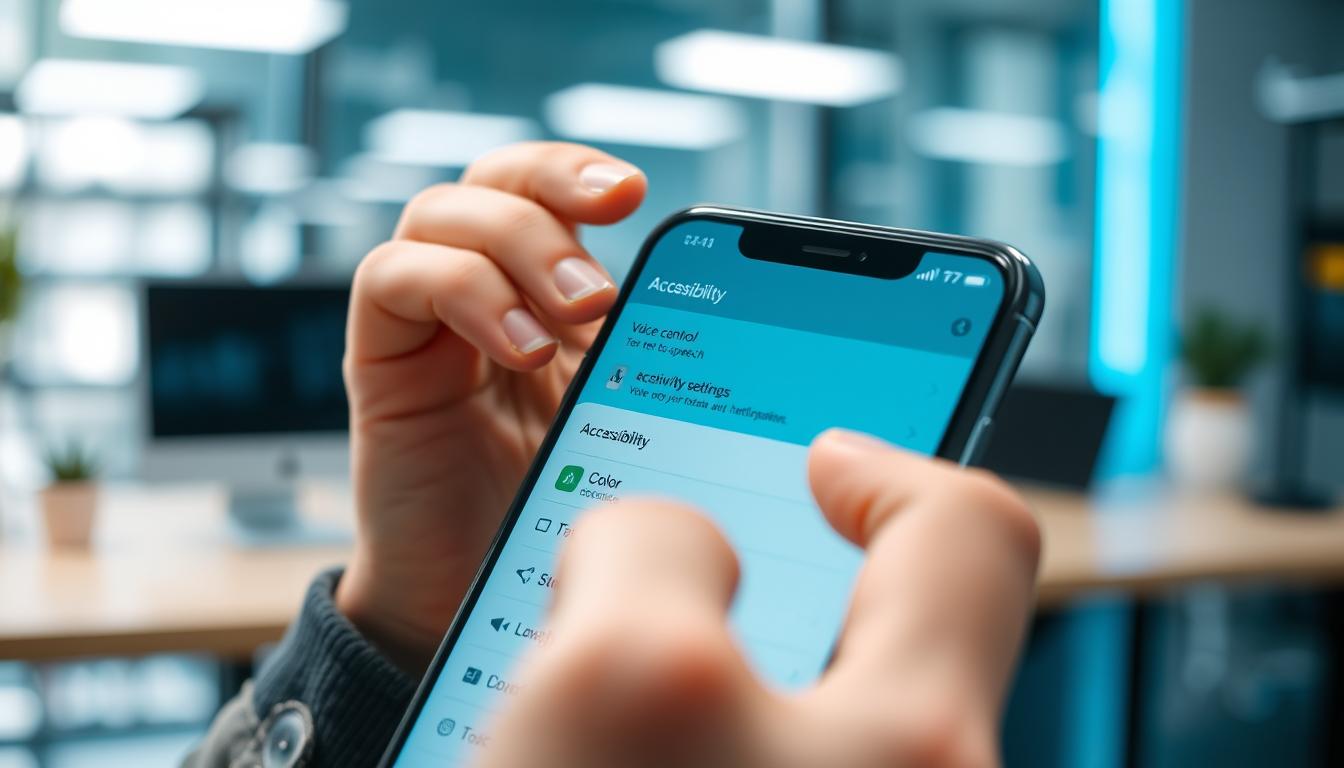
Smartphone Accessibility Features Explained Step by Step
Your mobile device holds incredible power to make daily life easier for everyone. Many users don’t realize the helpful tools already built into their phones.
These built-in options can transform how you interact with your device. Whether you have specific needs or just want a more comfortable experience, these tools offer significant benefits.
This guide walks you through activating and using these helpful settings. You’ll discover practical ways to customize your phone for vision, hearing, motor control, and cognitive needs.
Both iOS and Android platforms include robust assistance options. Many people find these tools useful even without specific disabilities.
By the end, you’ll know exactly where to find these settings and how to tailor them to your preferences. Your device can become more intuitive and personalized than you ever imagined.
Key Takeaways
- Modern mobile devices come with powerful built-in assistance tools
- These settings benefit everyone, not just people with specific needs
- Both iPhone and Android platforms offer comprehensive options
- You can customize settings for vision, hearing, motor skills, and cognitive functions
- Most users never explore these helpful features without guidance
- Personalizing these tools creates a more comfortable user experience
- Learning to use these options can significantly improve daily phone interactions
Understanding the Importance of Accessibility on Smartphones
The true power of your device lies in its ability to adapt to your unique way of interacting with the world. These built-in tools are crucial for many individuals.
Consider that over two million people in the UK live with sight loss. Another 11 million experience hearing loss. For them, standard device use can be a challenge.
Why Accessibility Matters for You
These options create independence for individuals with a disability. This includes visual or hearing impairment, or physical challenges.
But the benefits extend much further. Perhaps you’re in a loud place or have tired eyes. These tools can help in those temporary situations, too.
They offer customization that makes your device work better for your specific needs. This creates a more comfortable experience for all users.
An Overview of Essential Features
Your phone includes several key assistance options. Screen readers vocalize text, while magnification tools enlarge content.
Sound recognition systems alert you to important noises. There are also alternatives for touch control.
Exploring these things can enhance your experience in surprising ways. They ensure everyone can access the full potential of their technology.
Navigating Your Device’s Accessibility Settings
Finding your way around your device’s settings is simpler than you might think. The menu system is designed to help you locate helpful tools quickly.
Locating Accessibility Options on iOS and Android
On your iPhone, open the Settings app and tap the Accessibility option. You’ll find a comprehensive menu organized by category.
Android users can access similar options through Settings, then selecting Accessibility. The exact location may vary slightly by brand.
Once you reach the main settings menu, you’ll discover options grouped by vision, hearing, and interaction controls. This organization makes it easy to find what you need.
You can create shortcuts for your most-used tools. This allows quick toggling without navigating multiple menus each time. Your device gives you control over how these options work for your comfort.
Smartphone Accessibility Features Explained: Voice and Screen Readers
The ability to hear what’s on your display opens up new possibilities for device interaction. Screen reading technology provides audio feedback for everything happening on your phone.
These tools are especially helpful if you have visual challenges. They also work well in situations where looking at your screen isn’t practical.
Activating VoiceOver and TalkBack
Your iPhone includes VoiceOver, a powerful screen reader. Go to Settings > Accessibility > VoiceOver to turn it on. You can adjust the speaking rate and voice preferences.
Android devices offer TalkBack with similar functionality. Navigate to Settings > Accessibility > TalkBack to activate it. This tool also includes a braille keyboard for text entry.
| Gesture | VoiceOver Action | TalkBack Action |
|---|---|---|
| Swipe Right | Move to next item | Move to next item |
| Swipe Left | Move to previous item | Move to previous item |
| Double Tap | Activate selected item | Activate selected item |
| Two-Finger Swipe Up | Read page from top | Scroll down |
| Two-Finger Swipe Down | Read page from current position | Scroll up |
Using Gesture-Based Navigation
Screen readers rely on specific gestures instead of traditional tapping. You’ll use double tap to select items rather than single tap.
Multi-finger gestures help you navigate more efficiently. Swipe with three fingers to scroll through content. These movements become intuitive with practice.
Your screen reader describes each action as you perform it. This audio guidance ensures you always know what’s happening on your device.
Optimizing Visual Accessibility: Magnification and Display Adjustments
Your device offers powerful tools to enhance what you see on the display. These options help make everything clearer and more comfortable for your eyes.
Enabling Zoom, Magnifier, and Screen Reader Modes
You can magnify your entire screen or specific areas for better visibility. On iPhone, go to Settings > Accessibility > Zoom to activate this feature.
Your device’s camera becomes a digital magnifying glass with the Magnifier tool. This helps read small text on labels or menus in daily situations.
Android users find similar options under Settings > Accessibility > Magnification. Triple-tap gestures provide quick zoom when needed.
| Feature | iOS Option | Android Option | Activation Method |
|---|---|---|---|
| Full Screen Zoom | Settings > Accessibility > Zoom | Settings > Accessibility > Magnification | Triple-tap or gesture |
| Digital Magnifier | Built-in Magnifier app | Magnifier app (Pixel 5+) | Camera-based tool |
| Text Size Adjustment | Larger Text option | Font size settings | System-wide scaling |
| Contrast Enhancement | Increase Contrast | High contrast text | Display settings |
Customizing Fonts, Colors, and Contrast
Adjust text size and display scaling to make content more readable. These changes work across your entire device for consistent viewing.
Color correction helps with color blindness, while dark mode reduces eye strain. High-contrast text makes words stand out clearly against the background.
Bold Text and Reduce Motion settings provide additional comfort options. These adjustments create a personalized viewing experience that suits your vision needs perfectly.
Enhancing Audio Accessibility: Hearing Aids, Sound Recognition, and More
Your phone’s audio capabilities extend far beyond simple volume adjustments. These tools help you stay connected to important sounds in your environment.
Modern devices offer sophisticated audio support that adapts to your hearing needs. Whether you need help with specific sounds or general audio clarity, your phone has you covered.
Setting Up Sound Recognition and Live Transcribe
Your iPhone includes Sound Recognition that listens for important alerts. Enable this in Settings to get notified about fire alarms, doorbells, or running water.
Android users can activate Live Transcribe for real-time speech conversion. This app turns conversations into text instantly, helping you follow along clearly.
Both systems provide valuable assistance for different listening situations. You can customize which sounds trigger alerts based on your daily routine.
Integrating Hearing Aid Support with Your Device
Modern phones work seamlessly with Bluetooth hearing aids. Look for devices with M4/T4 ratings for the best compatibility and clear sound quality.
Hold your phone one or two inches from your hearing aid to reduce interference. This simple technique minimizes feedback while maintaining audio clarity.
Your Google Assistant provides voice-controlled help for daily tasks. Use voice commands to get information without straining to hear notification sounds.
Sound Amplifier enhances audio through headphones, making everything clearer. Live Caption automatically adds text to any audio playing on your device.
Managing Touch and Motor Assistance for a Smoother Experience
Your device offers innovative ways to navigate without complex touch gestures. These tools provide alternative methods for interacting with your phone when standard touch controls are challenging.
Both iOS and Android include powerful options for motor assistance. You can customize how you control your device to match your physical abilities.
Activating AssistiveTouch and Back Tap on iPhone
AssistiveTouch creates a floating menu on your screen. This lets you perform complex actions with simple single taps instead of multi-finger gestures.
Enable it in Settings > Accessibility > Touch > AssistiveTouch. The menu provides quick access to common functions.
Back Tap lets you double- or triple-tap the back of your phone to trigger customized actions. You can set it to take screenshots or launch apps without touching the screen.
Utilizing Switch Access and Other Options on Android
Switch Access enables control using external hardware like adaptive switches or keyboards. Find this option in your device’s accessibility settings.
Voice Access lets you control your entire phone through voice commands. You can open apps, navigate menus, and type messages without using your fingers.
Action Blocks create customizable buttons on your home screen. These perform specific daily actions with a single tap.
| Feature | Platform | Primary Function | Activation Method |
|---|---|---|---|
| AssistiveTouch | iOS | Floating menu for simplified control | Settings > Accessibility > Touch |
| Back Tap | iOS | Back-of-phone gesture triggers | Settings > Accessibility > Touch |
| Switch Access | Android | External device integration | Accessibility settings menu |
| Voice Access | Android | Voice command control | Accessibility settings |
| Action Blocks | Android | Custom home screen buttons | Google Play Store app |
These tools create a more comfortable experience for everyone. They demonstrate how technology can adapt to individual needs.
Conclusion
Your exploration of these built-in tools marks the beginning of a more intuitive digital experience. You’ve discovered how your phone can adapt to your unique needs and preferences.
These powerful options are ready to use right now. Simply visit your settings menu to enable the tools that work best for you. You can create shortcuts for quick access to your favorite functions.
Whether you need help with vision, hearing, or physical control, your device offers practical solutions. The time you invest in personalizing these settings pays off every day with a more comfortable experience.
Your technology should work for you, not the other way around. Start exploring today and unlock the full potential of your mobile companion.