
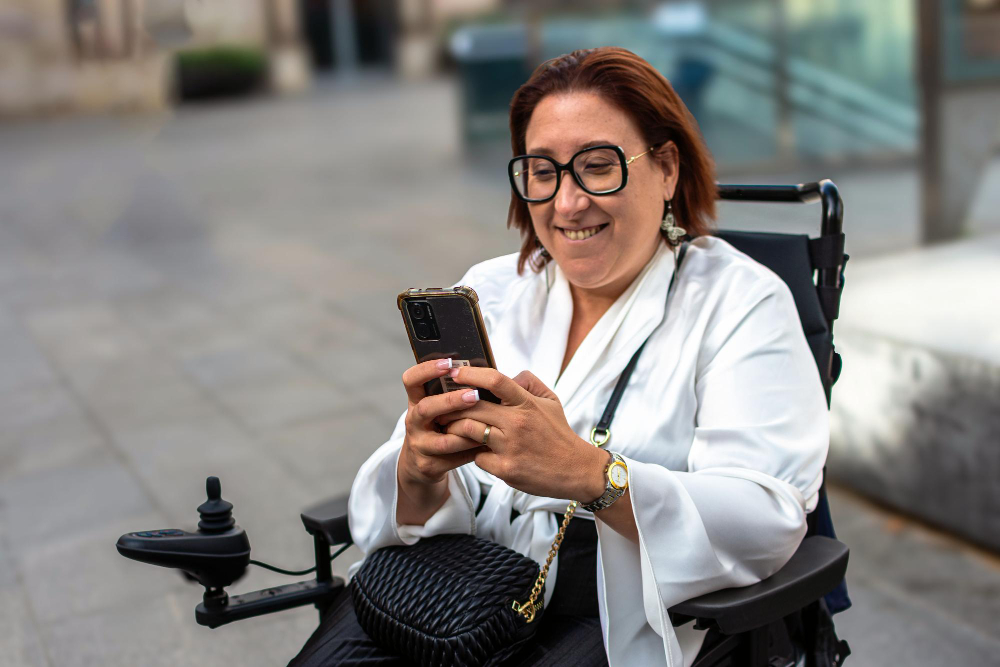
How to Adapt Your Phone and Tablet to Your Physical Needs as You Age
As your physical needs change — whether from arthritis, reduced vision, hearing loss, or simply the fatigue that comes with age — the way you interact with technology needs to change with them. The challenge is that most smartphones and tablets are designed with a 30-year-old’s hands and eyes as the default. The good news is that both Apple and Android have invested significantly in accessibility features that allow you to reconfigure your device to fit your actual physical situation. This guide covers the most practical adaptations by physical need.
Adapting for Reduced Vision
Vision changes are among the most common physical shifts with age, and they’re among the easiest to address through device settings. The key adjustments work across the entire phone — not just one app — so setting them once improves your experience everywhere.
Text size and display zoom. On iPhone: Settings → Display & Brightness → Text Size, then drag the slider to the largest comfortable size. Enable Larger Accessibility Sizes at Settings → Accessibility → Display & Text Size → Larger Text for even bigger options. Display Zoom (Settings → Display & Brightness → Display Zoom → Larger Text) scales the entire screen, not just text. On Android: Settings → Display → Font Size and Style for text, and Display Size in the same menu to scale the whole interface.
Bold text. On iPhone: Settings → Accessibility → Display & Text Size → Bold Text. This makes letters darker and thicker, which many older adults find more readable than size increases alone, particularly for people with early cataracts or reduced contrast sensitivity.
Spoken content. If reading on screen is tiring, your iPhone can read any text aloud. Settings → Accessibility → Spoken Content → Speak Screen allows two-finger swipe down from the top to read any page aloud. Speak Selection lets you highlight specific text to have just that portion read. Android has a similar feature called Select to Speak under Settings → Accessibility.
Magnifier. iPhone has a built-in magnifying glass that turns your camera into a powerful zoom tool. Go to Settings → Accessibility → Magnifier and turn it on. Then triple-click the side button to activate it anytime — useful for reading medicine labels, menus, or small print anywhere.
Adapting for Arthritis and Hand Dexterity Challenges
Arthritis affects approximately 50% of adults over 65 in the United States, according to the CDC, making it one of the most common reasons older adults struggle with standard smartphone interfaces. Several built-in settings address this directly.
Voice dictation instead of typing. Tap the microphone on the keyboard (available in every app on both iPhone and Android) and speak instead of type. This eliminates the need for precise finger placement on small keys. On iPhone, you can also use Siri to compose and send messages entirely hands-free: “Hey Siri, send a message to Maria — I’ll call you tomorrow.”
AssistiveTouch on iPhone. Settings → Accessibility → Touch → AssistiveTouch creates a floating on-screen button that stays visible at all times. Tapping it gives quick access to Home, volume, screenshots, and other actions without pressing physical buttons — useful for anyone with limited hand strength or grip.
Touch Accommodations on iPhone. Settings → Accessibility → Touch → Touch Accommodations lets you set a minimum touch duration — the phone ignores taps shorter than the time you specify. This filters out the accidental taps that happen when arthritic hands rest briefly on the screen while repositioning.
Larger tap targets. On both platforms, choosing a simplified home screen layout with fewer, larger icons reduces precision requirements. On iPhone, Assistive Access (Settings → Accessibility → Assistive Access) replaces the standard home screen with very large tiles. On Samsung Android, Easy Mode (Settings → Display → Easy Mode) does the same.
Adapting for Hearing Loss
Hearing loss affects about one in three people between 65 and 74 and nearly half of those over 75, according to the National Institute on Aging. Standard phone audio settings are rarely configured for this reality, but the adjustments are straightforward.
Maximum ringer and alert volume. On iPhone: Settings → Sounds & Haptics → Ringer and Alerts slider to maximum. On Android: Settings → Sound & Vibration → Ring Volume to maximum. Also enable vibration as a backup so you feel calls even when you don’t hear them.
LED flash alerts. On iPhone: Settings → Accessibility → Audio & Visual → LED Flash for Alerts. The camera flash blinks with every call and notification — visible across a room. On Android: Settings → Accessibility → Flash Notification.
Live Captions during calls and videos. On Android, Live Captions (Settings → Accessibility → Live Caption) displays real-time text of any audio playing on the phone, including phone calls and videos, directly on screen. On iPhone, Live Captions is available in Settings → Accessibility → Live Captions on iPhone 11 and later.
Hearing aid compatibility. Many newer iPhones and Android phones support Made for iPhone hearing aids and Bluetooth hearing aids respectively, streaming call and media audio directly to your hearing aids with significantly better clarity than the phone’s speaker provides. Check with your audiologist about whether your hearing aids support this feature.
Adapting for Fatigue and Cognitive Load
Beyond vision and dexterity, many older adults find that cognitive fatigue — the mental effort of navigating complex apps and remembering how things work — makes technology frustrating. The best adaptations here reduce complexity rather than adding to it.
Simplify the home screen to show only the five or six apps used daily. Remove everything else from the main screen. On iPhone, Assistive Access limits the home screen to exactly the apps you choose, displayed as large, clearly labeled tiles with no clutter. This single change dramatically reduces the cognitive effort of daily phone use for many older adults.
Set up one-tap call shortcuts for the most frequently called family members — their photo and name as a large button on the home screen, dialing them with a single tap. Ask a family member to help set this up once, and it removes one of the most common frustrations: finding a contact quickly when you want to call.
Technology adapted to your actual physical needs isn’t a compromise — it’s the device working the way it should have been configured from the start. The features described in this guide exist precisely because Apple and Android recognize that physical needs vary across the full range of people who use their devices. Using these features is simply good configuration, not a concession to limitation.

Dan Alex is the founder and lead writer at Apps for Download, focused on translating digital literacy and accessibility topics into clear, jargon-free guidance for older adults and their families. Every guide is researched against reputable sources on digital safety and assistive technology rather than presented as personal expertise alone.