
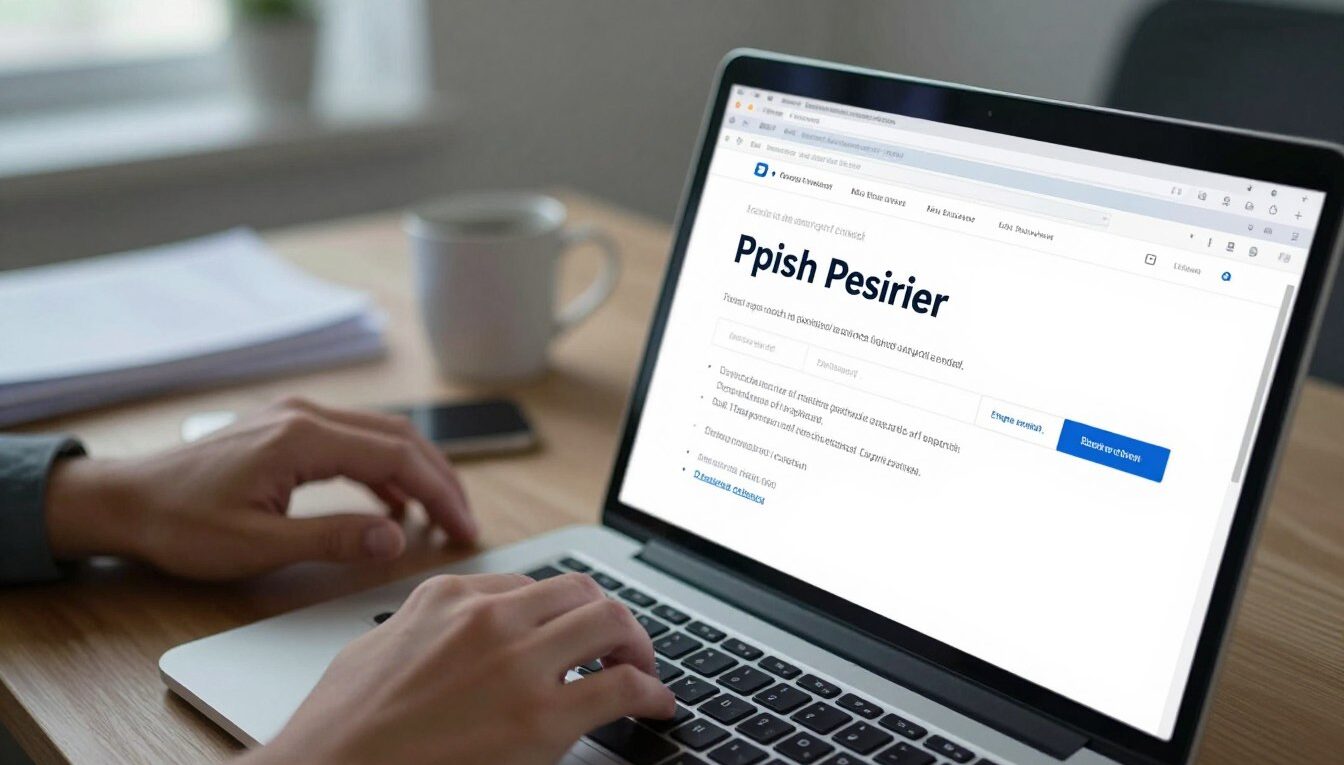
How to Recognize a Phishing Email Before It Costs You: A Plain-Language Guide for Seniors
Many adults 65 and older are often targeted because scammers count on trust in familiar brands, time pressure, and higher financial stakes. Phishing uses email and text messages to try to steal passwords, account numbers, or Social Security numbers. In 2024, people 60+ lost nearly $5 billion to cybercrime; the FBI lists phishing as the top complaint for this age group.
This short guide covers what phishing attacks look like, clear examples you will likely see, simple checks you can run, and exact steps for what to do if you clicked a link or opened a message. You will learn quick signs and red flags that do not need technical skill.
Dan Alex, with 15+ years helping older adults with digital safety, walks you through plain steps and checklists. The goal is confident control, not alarm. You will also see common scams—fake bank alerts, phony order notices, government-style threats, and prize offers—and easy habits that protect your personal information and security.
Search phrase: how to recognize phishing email elderly
Why phishing targets older adults and why it works
Many scammers aim messages at older adults because the payoff can be large and recovery is often slow. You might feel rushed or confused when a notice looks official. That reaction is exactly what a scammer wants.
Plain meaning and the spam difference
Phishing is a fake message that tries to trick you into giving private details or clicking something dangerous. Spam is unwanted advertising; phishing is designed to steal and cause real harm.
Trust, urgency, and copied names
Scammers copy logos, language, and familiar company names so you let down your guard. Messages rarely carry true authentication, so criminals can mimic trusted senders and gain access based on appearance alone.
Why the stakes are higher for people 60+
Adults over 60 often hold retirement savings and benefits that scammers find valuable. Stolen passwords can lead to account takeovers, bank withdrawals, or new credit opened in your name.
Reality check: many U.S. adults in this age group report large losses, so this is common—not a failing. A simple mindset shift helps: you do not have to respond immediately. Real companies will still be there tomorrow. Pause, verify using trusted contact details, and never share passwords or verification codes by message.
Common phishing email and text message scams you’re likely to see
You will get messages that copy real banks, stores, and agencies. They look official, but small details give them away.
Account problem alerts
A message claims your bank or credit card has suspicious activity and asks you to verify now. The link usually goes to a fake sign-in page meant to steal credentials.
Utility shutoff or urgent company notices
An email warns your electricity or water will stop unless you pay immediately. Pressure plus unusual payment methods are key warning signs.
Fake invoices and order confirmations
You may receive a receipt for an Amazon-style order you never made. The link asks for updated payment details and can install malware or capture card data.
Government and Social Security-style threats
IRS-like penalty notices or Social Security “suspension” messages use official words to frighten you. Always verify by calling the agency using a known number, not links in a message.
Personal pleas and prize offers
A “grandchild in trouble” note asks for quick money and copies personal details from social media. Prize wins ask for fees or personal data before you claim anything.
| Scam type | Common clue | What it asks | Safe action |
|---|---|---|---|
| Bank alert | Generic greeting, urgent link | Verify sign-in | Call bank using number on statements |
| Utility notice | Threat of shutoff, odd payment method | Pay now | Log in at the utility website directly |
| Order/invoice | Purchase you did not make | Update payment or download receipt | Check account on the retailer site |
| Family plea / Prize | Unusual urgency, asks for fees | Send money or share info | Contact family member or ignore offer |
How to recognize phishing email elderly can spot quickly
A quick glance can tell you if a message is risky — and you can learn that fast. Use a short, 60-second scan before you act. This saves time and keeps your accounts safe.
First-glance red flags
Check the sender address, not just the display name. A familiar company may hide a strange domain or extra letters.
Look at the subject and greeting. Generic lines like “Dear Customer” or odd wording are common signs. Spelling errors are another clear flag.
Pressure tactics that push you to act
Scammers use deadlines, threats, and “final notice” wording to rush you. If a message pressures you to pay or share passwords, pause.
Safe link and URL checks
On a computer, hover over a link to see the true URL. On a phone, press and hold the link to preview it without opening.
Look for small misspellings, extra dashes, or strange endings. Even a padlock or HTTPS does not guarantee the site is real.
Attachment warning signs
Unexpected PDFs, Word files, or images can hide malware. Malware can record typing, steal passwords, or give remote access.
If you did not expect an attachment, do not open it. Verify with the company using a trusted phone number or website.
| Check | What to look for | Safe action |
|---|---|---|
| Sender | Display name mismatch or odd domain | Hover to reveal the full address, then verify |
| Subject / Greeting | Urgent language or generic greeting | Ignore pressure; contact company directly |
| Links / URLs | Misspellings, extra characters, strange endings | Type the website yourself or use a saved bookmark |
| Attachments | Unexpected file types or poor grammar | Scan with security software; confirm sender first |
Step-by-step: what to do when you get a suspicious email or message
When a suspicious message arrives, a calm, quick checklist keeps you in control. Follow these clear steps and use simple checks before you reply, click, or pay. Each step is a small action you can finish in under a minute.
Pause and ask: do you have an account with this company or know this person?
Step 1: Pause for 30 seconds and reread the message. Urgency is a common tool used in a scam.
Step 2: Ask the key question: do you actually have an account with that company, or do you truly know this person who contacted you?
Verify safely by typing the website yourself or using a trusted phone number
Step 3: Do not click any link. Type the website into your browser or use a saved bookmark to sign in and check your account.
Step 4: If you need a phone contact, use a trusted number from your bank card, a past statement, or the official website you typed yourself.
What to do instead of clicking “reply,” “confirm,” or “pay now”
Step 5: Do not reply or confirm. Replying can validate your address and prompt more messages.
Step 6: Never make a payment from a message. Check your real accounts by signing in safely and looking for alerts in your dashboard.
How to check if a real account issue exists by logging in the safe way
- Sign in at the company website you typed yourself.
- Look for alerts or unusual activity in your accounts.
- If you remain unsure, ask a trusted person to review it with you, but do not click links first.
If you cannot verify details independently, delete the message and move on. These simple ways keep your information secure and lower the chance of a scam.
If you clicked a link or shared information: damage control and reporting in the U.S.
If you shared sensitive information by mistake, start calmly. Prompt action often limits harm and restores access.
If you gave out Social Security, bank, or card details
Go to IdentityTheft.gov and follow the customized recovery plan. That site helps you report stolen social security numbers, cancel compromised cards, and lock credit reports.
If you opened an attachment
Update your security software and run a full scan right away. Malware from an attachment can log typing or give remote access, so remove any found threats and restart your device.
How to report and who to contact
Forward suspicious messages to reportphishing@apwg.org. Texts can be forwarded to SPAM (7726). File a report at ReportFraud.ftc.gov.
Call your bank or card issuer’s fraud line if payment details were shared. If you suspect account takeover, contact your email provider’s security help page and change passwords there first.
- Secure your email account.
- Secure financial accounts and change passwords.
- Run security scans and remove threats.
- Report the scam and follow IdentityTheft.gov steps.
- Enable automatic updates, multi-factor authentication, and backups.
| Who | Action | Where |
|---|---|---|
| Identity theft | Start recovery plan | IdentityTheft.gov |
| Phishing messages | Forward and report | reportphishing@apwg.org, 7726, ReportFraud.ftc.gov |
| Bank or card | Call fraud department | Number on card or statement |
Conclusion
Small steps taken every time you read a message make you far harder to target. Pause, check the sender, and never use links in surprise notices. This simple routine cuts most phishing attempts off at the start.
Quick recap of key signs: unexpected requests, urgent pressure, links that ask you to “confirm,” and attachments you did not expect. Treat your email like front-door mail — you do not have to answer every note, and deleting doubtful emails is wise.
Keep automatic updates on, enable multi-factor authentication, and keep backups. These free habits raise your security and frustrate scammers. Learning these steps builds real confidence. — Dan Alex
FAQ
What exactly is phishing and how is it different from ordinary spam?
Why do scammers often target older adults in the United States?
What common types of emails and text messages should I watch for?
What are the easiest red flags you can spot at a glance?
How can you check links and URLs without clicking them?
Are attachments dangerous and what should you do if one arrives?
If a message looks real with logos and HTTPS, can it still be fake?
What should you do first when you receive a suspicious message?
How should you verify a message safely without exposing information?
What’s the right action instead of clicking “reply,” “confirm,” or “pay now”?
How do you check if a real account problem exists safely?
If you accidentally gave Social Security, bank, or card details, what immediate steps should you take?
What should you do if you opened a malicious attachment?
How and where can you report phishing in the United States?
Who should you contact if your email or bank account may be compromised?
What settings and free tools can strengthen your protection after an incident?
Are there safe practices for dealing with texts and phone calls as well?

Dan Alex is the founder and lead writer at Apps for Download, focused on translating digital literacy and accessibility topics into clear, jargon-free guidance for older adults and their families. Every guide is researched against reputable sources on digital safety and assistive technology rather than presented as personal expertise alone.