
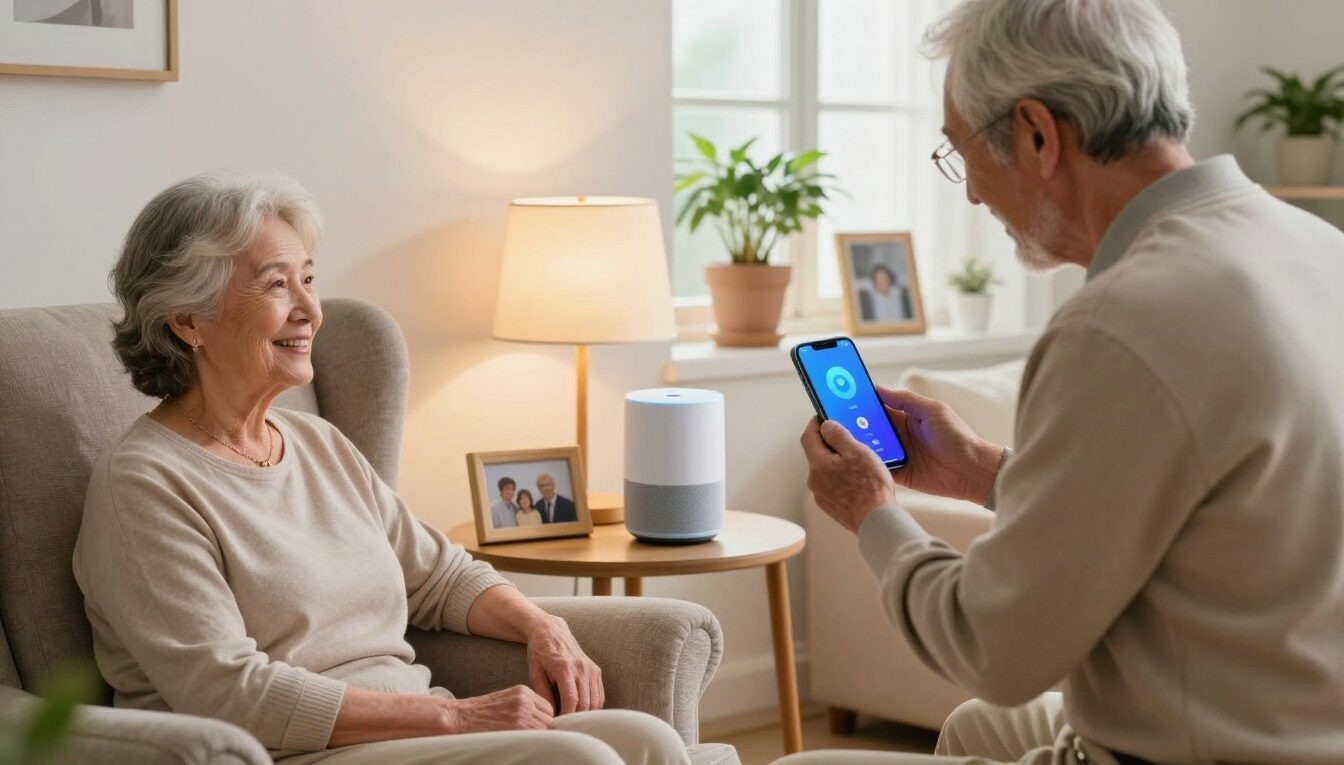
How to Use Siri, Google Assistant and Alexa as Everyday Helpers for Older Adults
Welcome. This short guide shows you and your caregiver practical steps that make daily life easier. You don’t need to be good at tech. If you can speak, you can get reminders, make hands-free calls, and control lights from an iPhone or Android device.
Start small: learn a few essential commands and build from there. You’ll find quick setup tips for iPhone accessibility and Android settings like larger text, hearing support, and touch options. Simple add-ons such as smart plugs, an Echo Show or Nest Hub, and medical-alert pairing increase comfort and safety.
Privacy matters. This guide explains wake words, microphone mute, and clearing voice history in plain terms, without jargon. Caregivers can help with setup and account management while you stay in control.
Author: Dan Alex, technology specialist and digital education advocate with 15+ years in assistive technology for older adults. Expect practical, confidence-building steps that support your independence.
Why voice assistants work so well for older adults right now
For people facing changes in sight, hearing, or hand strength, spoken tech often fits well. It removes barriers created by tiny text, tiny icons, and fiddly buttons. Many seniors learn a few commands in days when setup is done thoughtfully and starts small.
Hands-free help when vision, hearing, or dexterity changes show up
As vision changes, you can ask aloud instead of squinting at a screen. If hearing is different, you can raise volume or slow the reply. For limited dexterity, spoken requests replace typing and precise taps.
More independence with less screen time and fewer small buttons
Get time, weather, reminders, and simple answers without hunting apps. Less screen use means less eye strain and more confidence in daily routines.
Peace of mind for caregivers when you live alone
Caregivers gain quiet assurance when calls, reminders, and emergency contacts are in place. This supports safety at home while you keep control of settings and routines.
The age-related challenges voice assistants can make easier
Daily tasks can feel tiring when small screens, soft alerts, and stiff hands get in the way.
Reduced vision and eye strain from small text
Reading tiny calendars or messages can cause squinting and headaches. Ask your device to read weather, appointments, or texts so your eyes rest.
Try iPhone Display & Text Size or Android font scaling, and add a Nest Hub or Echo Show for larger visuals.
Hearing loss and missed alerts
Soft beeps and missed tones lead to missed calls or reminders. Raise speaker volume or place a smart speaker closer to you.
Use Live Caption on Android or amplified alerts on iPhone. Pair with visual alert apps or flashing lamp smart plugs.
Arthritis, tremors, and limited hand dexterity
Tapping tiny buttons can hurt and cause errors. Spoken commands cut out fiddly taps so you can finish tasks without strain.
Enable AssistiveTouch on iPhone or Accessibility Menu on Android. Try smart plugs and voice-ready smart displays for hands-free control.
| Challenge | Day-to-day feeling | Built-in accessibility | Third-party tool |
|---|---|---|---|
| Reduced vision | Squinting at small text, eye fatigue | iPhone Display & Text Size, Android font scale | Echo Show / Nest Hub for larger text |
| Hearing loss | Missed tones and alerts | Live Caption, louder alerts | Smart speaker near bed, flashing lamp via smart plug |
| Dexterity limits | Pain when tapping, slow typing | AssistiveTouch, Accessibility Menu | Smart plugs, screen devices with big buttons |
| Mobility & fall risk | Risk getting up at night | Quick Access on phone, emergency settings | Smart lights on plugs, bedside support rails |
Choosing between Siri, Google Assistant, and Alexa for your home
Match the gadget to your daily habits and the phone you already carry. That simple rule keeps setup small and limits confusion.
When Siri fits best
If you already have an iPhone or iPad, Siri often feels easiest. Contacts, calls, and calendar events live in one place, so setup is faster.
You can add a HomePod or an iPad in a main room for larger text and clearer replies.
When Google works well
Pick Google if you rely on Android or Google Calendar for appointments and family schedules. It links smoothly with Gmail and shared calendars.
A Nest Hub gives big visuals for reminders and video calls without extra complexity.
When Alexa is a strong match
Choose Alexa if smart-home control and simple routines matter most. It often handles lights, plugs, and timed actions with short phrases.
Routines can announce medication times, turn lamps on, and run with one command.
- Smart speaker: best for “just talk” and minimal handling.
- Phone or tablet: good if you need portability and on-the-go access.
- Screen device: helps with larger visuals and easy video calls.
Caregivers often pick systems that support shared routines and household device management. Start with one device in one room. Expand only if it truly adds comfort and fits your routine.
| Best match | Strength | Typical device | Good for |
|---|---|---|---|
| Apple users | Fast setup with existing contacts | iPhone, iPad, HomePod | Calls, text reading, simple reminders |
| Android/Google users | Calendar and Google service sync | Android phone, Nest Hub | Shared schedules, visual reminders |
| Smart-home focus | Flexible routines and device control | Echo, Echo Show | Lights, plugs, timed routines |
| Comfort choice | Talk-only vs. screen vs. portable | Speaker, screen hub, phone | Just talk, larger visuals, on-the-go access |
Before you set anything up, get the basics ready
Before you plug anything in, a little preparation can save time and avoid frustration. A short checklist reduces steps and makes the first setup feel easy.
Check Wi‑Fi strength where the device will live
Weak Wi‑Fi causes delayed responses and missed reminders. Test signal at the nightstand, living room table, and kitchen counter before buying or moving a device.
Pick a location that supports safety and daily habits
Choose spots that match routines: bedroom for night help, kitchen for timers, living room for calls and music. Stable power and clear placement cut down on dropped connections and confusion.
Decide who manages accounts, passwords, and contacts
Ask a caregiver or trusted family member to help with accounts and contacts. That avoids small on-screen typing and stuck sign‑ins. Keep one written password note in a secure place.
Create a short “starter list” of commands you’ll actually use
- “What time is it?”
- “What’s the weather?”
- “Call [name]”
- “Remind me to take medicine at 9 AM”
- “Turn on the kitchen light”
Practice two minutes a day asking for time and weather until it feels natural. Keep the device plugged in and in the same spot so your voice habits form quickly.
| Placement | Why it helps | Wi‑Fi note | Caregiver role |
|---|---|---|---|
| Bedroom nightstand | Quick access at night; supports safety | Test overnight signal for alarms | Set emergency contacts and routines |
| Kitchen counter | Timers and lists for cooking | Requires steady signal near range | Add frequent contacts for calls |
| Living room table | Better sound for calls and music | Check for interference from other gadgets | Teach a few starter commands |
| Single fixed spot | Builds consistent habits and fewer errors | Plug into a stable outlet | Manage accounts and password notes |
iPhone accessibility settings that make Siri easier to use
A few iPhone settings help clear the screen, ease tapping, and improve sound for daily tasks. Small text and tiny icons can strain your vision. Precise taps can hurt when buttons feel stiff. Audio may be harder to catch when hearing changes occur.
Make text and icons easier to see with Display & Text Size
Open Settings > Accessibility > Display & Text Size. Turn on Larger Text and Bold Text. Increase the size until labels and app icons are simple to read.
Reduce touch strain with AssistiveTouch and Touch Accommodations
Enable AssistiveTouch for a floating menu that cuts down on precise taps. Use Touch Accommodations to ignore brief taps or adjust touch hold time. These tools let you press fewer small buttons on the screen.
Help with hearing using Live Listen, audio balance, and headphones
Live Listen sends surrounding sound through compatible headphones so speech is clearer. Check audio balance if one ear hears better. For third-party gear, consider comfortable over-ear headphones like the Apple‑certified Bose QuietComfort series.
Once display, touch, and hearing are set, Siri becomes an easier front door for calls, reminders, and quick info. Set up “Hey Siri” and test it from your favorite chair so speaking distance works well. Ask a caregiver to make these changes once and enjoy daily benefits with little upkeep.
| Setting | Where to find it | Benefit |
|---|---|---|
| Display & Text Size | Settings > Accessibility | Larger, bolder text for easier reading |
| AssistiveTouch | Settings > Accessibility > Touch | Fewer precise taps; easier control |
| Live Listen / Audio Balance | Settings > Accessibility > Hearing | Clearer sound and balanced audio for calls |
Android accessibility settings that make Google Assistant easier to use
If your Android screen feels cluttered or small, a few settings can make it calmer and clearer.
Start with font size, display size, and high contrast. Increase font and display size to make calendars, reminders, and messages easier to read. High contrast or dark theme sharpens labels so you spend less time squinting.
Live Caption and hearing-aid support
Live Caption shows spoken audio as text on the screen. This helps when audio is quiet or unclear during calls and media.
Many Android phones pair with Bluetooth hearing devices. That clearer audio improves spoken interactions with your assistant and phone calls.
Accessibility Menu and touch timing
Turn on the Accessibility Menu for a full-screen control panel that reduces precise taps. It puts common actions like volume, lock, and screenshots in one place.
Adjust touch and hold delay so brief or shaky taps don’t trigger actions by mistake. These settings ease strain when hands are stiff or unsteady.
- Why: calmer screen and simpler controls cut mistakes and boost confidence.
- Third-party add-on: a Google Nest Mini or Nest Hub gives louder, room-based replies and pairs well with smart plugs for hands-free lights.
- Caregiver tip: have someone set key contacts, tune volume, and build the first routines with you.
| Challenge | Android setting | Benefit |
|---|---|---|
| Reduced vision | Font & display size, high contrast | Larger text and clearer labels for calendars and reminders |
| Hearing changes | Live Caption, hearing-aid Bluetooth | On-screen captions and clearer call audio |
| Dexterity limits | Accessibility Menu, touch timing | Fewer accidental taps and simpler controls |
Once your phone is easier to see and control, speaking simple commands becomes the easiest way to set reminders, place calls, and check the day. Start small and add settings gradually so new routines stick.
voice assistant seniors how to use for daily routines without feeling overwhelmed
Begin with a tiny set of steps that bring real comfort and cut daily friction. Small wins build confidence, so keep the first goals simple and steady.
Start with a few high-value commands for time, weather, and simple questions
Pick 3–5 essentials and practice them for a few minutes each day. Try: “What time is it?”, “What’s the weather today?”, and “Ask a quick question about the news.”
Set medication and appointment reminders you can repeat out loud
Say a clear reminder like, “Remind me at 8 AM to take my medication.” Spoken reminders cut steps and support memory. Pair reminders with a weekly pill organizer on the counter.
Build a morning routine and an evening routine that reduce stress
Morning routine idea: time, weather, first reminder, and a short news update. Evening routine idea: turn on a lamp, set an alarm, and add a reminder for tomorrow’s first appointment.
Make it stick with a written command card near the device
Write 6–10 simple phrases on a card so you never must guess the exact command. Share the card with a caregiver if you want help. Small steps protect independence and bring steady comfort.
Step-by-step setup for Siri, Google Assistant, and Alexa
Follow these clear steps so your device is ready and reliable for daily reminders and calls.
Prepare a simple checklist
Make sure Wi‑Fi is working, the device is plugged in, your phone is nearby, and you have a short contacts list ready.
Siri (iPhone) setup
Open Settings and enable “Hey Siri.” Confirm language and voice. Then make a Siri Shortcut like “Good morning” that checks time, calendar, and sets a reminder.
Google setup with Google Home
Install the Google Home app, add your speaker or display, sign in with your Google account, and allow calendar access for appointment help.
Alexa setup with the Alexa app
Open the Alexa app, connect the Echo, add key contacts for calling, and create one simple routine (for example, “lights on”).
Training and testing
Speak at a steady pace, use the wake word consistently, and reduce background TV noise during training. Place the device within easy speaking distance.
- Ask the time.
- Set a test reminder.
- Make one call to a family contact.
- Run a routine like turning a light on.
| Step | What you do | Why it helps | Caregiver role |
|---|---|---|---|
| Checklist | Wi‑Fi, plug device, phone, contacts | Smoother setup and fewer errors | Prepare accounts and passwords |
| Siri Shortcut | Enable Hey Siri, set Shortcut | One phrase runs several features | Create the Shortcut with you |
| Google Home | Link device, sign in, allow calendar | Shared schedules and reminders | Confirm account access |
| Alexa & testing | Add contacts, set routine, run tests | Reliable calls and timed actions | Help run tests and troubleshoot |
Everyday tasks that give you more comfort, connection, and control
Small daily actions can add big comfort when you rely on simple tech around the house.
Hands-free calling and video chats for family
Set up hands-free calls so you reach relatives without hunting for your phone. Try brief phrases like “Call my daughter,” “Answer,” and “Volume up.”
Screen devices make video chats clear and repeatable. A few rehearsed commands help each call feel familiar and calm.
Music, radio, audiobooks, and news for company
Ask for music, a radio station, an audiobook, or a news briefing when you want company in the room. Quiet afternoons become livelier with a simple request.
Timers, lists, and gentle reminders for daily life
Use spoken timers for cooking, hydration prompts, and grocery lists so sticky notes are not needed. One daily anchor—like a kitchen timer—builds trust fast.
Smart-home control that reduces nighttime trips
Control lights and thermostats without getting up. Smart plugs for lamps, smart bulbs, and a basic smart thermostat cut movement and lower fall risk.
| Everyday task | Practical phrase | Device suggestion | Benefit |
|---|---|---|---|
| Calling family | “Call my daughter” | Screen device or smart speaker | Faster connection, hands-free calls |
| Comfort music | “Play jazz radio” | Phone, smart display | Company in the room, mood lift |
| Timers & lists | “Set a 10-minute timer” | Any smart speaker | Reliable cooking, hydration reminders |
| Night safety | “Turn on bedroom lamp” | Smart plug + smart bulb | Reduced nighttime trips, improved safety |
Safety, emergency planning, and privacy you can feel good about
Safety planning gives you clear steps that protect independence without adding stress. This short section focuses on practical options you control: trusted contacts, extra alerts, and simple privacy settings.
Using commands to reach trusted contacts fast
Add and test a short name for one or two key contacts so a single command calls family or a caregiver. Practice once with volume and call quality so it works in a real moment.
Pairing with medical alert systems
A wearable medical alert device is not replaced by smart devices, but it pairs well as an extra layer of safety at home. Combine a medical alert with a smart doorbell and motion night lights for fewer risky trips.
Privacy basics in plain language
Wake words are simply the phrase that starts a request. Use the microphone mute button when you want private time. Review and delete stored recordings in the app if that feels more comfortable.
Caregiver-friendly features and a monthly practice run
Opt-in tools like Drop In or announcements can speed quick check-ins with caregivers. Agree on boundaries: who may connect, which rooms have devices, and when notifications are allowed.
| Tool | Benefit | When to use |
|---|---|---|
| Wearable medical alert | Immediate professional help | Serious falls or urgent medical events |
| Smart doorbell | See who is at the door | Daytime visits and deliveries |
| Motion night lights | Reduced fall risk | Hallways and bathrooms at night |
Conclusion
This guide ends with a simple plan that preserves dignity and builds daily confidence. Start small and focus on the few features that matter most for independence and safety at home.
Big wins include easier reminders for medication, hands-free calling with family and caregivers, safer evenings with lights on smart plugs, and gentle entertainment that reduces isolation. Voice assistants and related apps can support routines, reminders, and connection without bright screens or fiddly buttons.
Next steps for you: choose one assistant, place one device in one room, set five commands, and practice for a week. Caregiver mini-checklist: manage accounts and contacts, confirm privacy settings, test calls and reminders, and review routines every few months.
Pair technology with tools like night lights, smart plugs, and a medical alert device if needed. Your assistant should fit your pace and life—not the other way around.
FAQ
What are the main benefits of using Siri, Google Assistant, or Alexa in a home for older adults?
How can these systems help with vision, hearing, or dexterity changes?
Which option is best if you already use an iPhone or iPad?
When should you pick Google Assistant?
Why choose Alexa for a household setup?
Should you use a smart speaker, a phone, or a screen device?
What should you check before setting up a device at home?
What iPhone settings make Siri easier to operate?
What Android accessibility options improve Google Assistant use?
How do you build useful daily routines without feeling overwhelmed?
How do you set up Siri, Google Assistant, or Alexa step by step?
What everyday tasks can these systems handle to improve comfort and connection?
How do you handle safety, emergency planning, and privacy?
Can these systems work with medical alert services or caregiver features?
What tips help when hearing or vision loss is present?
How do you manage accounts, passwords, and contacts safely for a household?
What if the device doesn’t understand commands reliably?
How can caregivers support learning and ongoing use?
Are there privacy concerns I should explain to family members?

Dan Alex is a technology specialist and digital advocate with over 15 years of experience in system optimization and user experience (UX). Throughout his career, Dan has witnessed the frustration that rapid technological shifts cause for the senior community. As the founder of Apps for Download, Dan Alex combines his technical background with a passion for simplified education. His “human-first” approach to technology has made him a trusted voice for families and caregivers looking to empower their loved ones with digital tools.
