
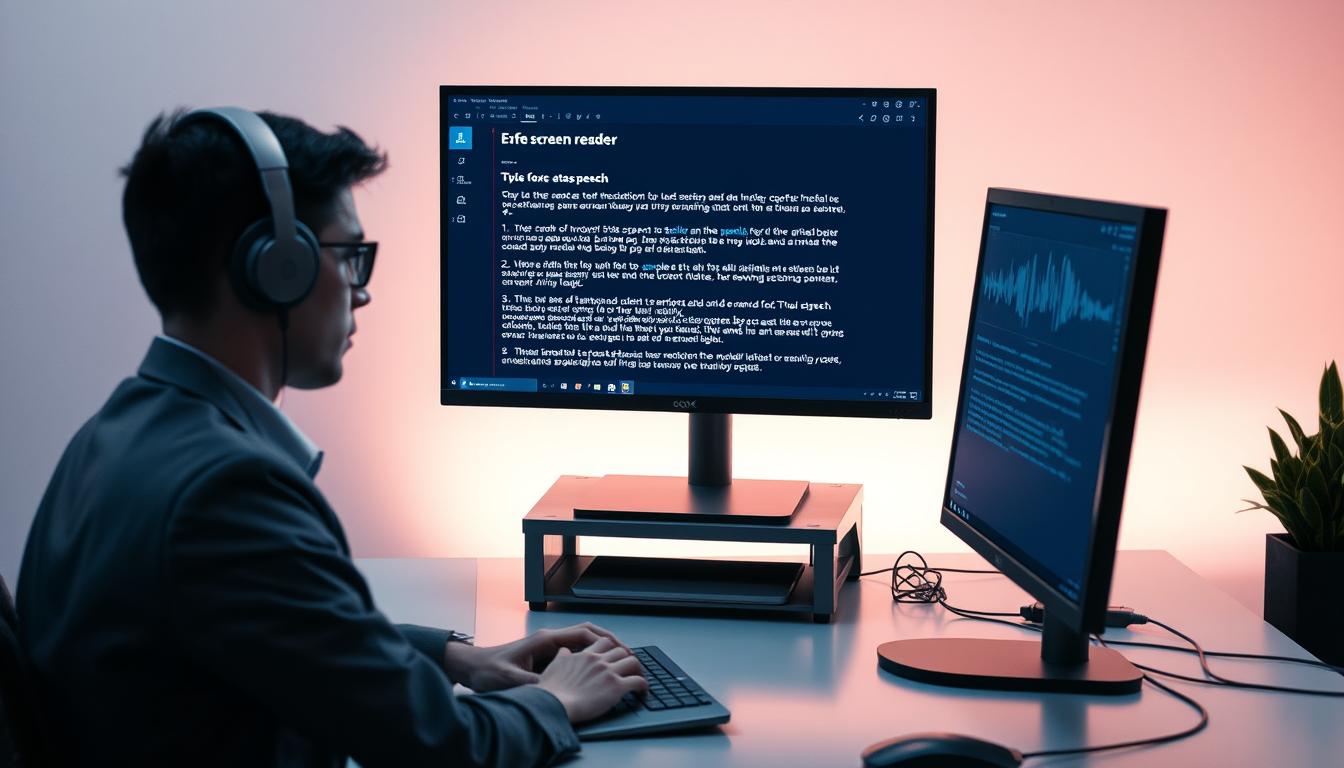
How Screen Readers and Text-to-Speech Tools Work
Have you ever wondered how digital devices can read content aloud? This technology opens up a world of possibilities for many people. It transforms visual information into audible output that you can hear.
These tools scan digital content and convert written words into spoken language. The process happens in real-time as you navigate through websites, documents, and applications. This creates an auditory experience that complements or replaces visual interaction.
The software analyzes page structure and content hierarchy to provide meaningful audio feedback. It identifies headings, links, and other elements to help you understand the layout. This intelligent processing makes digital navigation intuitive through sound.
Whether for accessibility needs or personal preference, these solutions empower individuals to interact with technology differently. They provide independence and flexibility in how you consume digital content. The underlying technology continues to evolve with smarter features.
Key Takeaways
- Digital tools convert written content into audible speech for easier access
- Real-time processing allows immediate audio feedback as you navigate
- Software intelligently identifies different content elements and structures
- These solutions serve both accessibility requirements and personal preferences
- Continuous technological improvements enhance the user experience
- Millions rely on this technology for independent digital interaction
- Understanding how it works helps you choose the right tools for your needs
Introduction to Screen Readers and Text-to-Speech Tools
Audio-based navigation tools have opened up digital spaces for diverse user needs. These solutions convert visual information into spoken words, creating auditory pathways through digital environments.
Understanding Key Concepts and Definitions
Two main technologies serve different purposes in audio assistance. Text-to-speech (TTS) focuses on converting written words into spoken language. It works well for reading documents or e-books aloud.
Screen reader programs offer comprehensive navigation support. They interpret entire interface elements, not just written content. This includes buttons, menus, and structural cues.
The key distinction lies in functionality depth. TTS provides basic vocal output for written material. Screen readers deliver complete environmental awareness through sound.
| Feature | Text-to-Speech | Screen Readers |
|---|---|---|
| Primary Function | Convert text to audio | Navigate full interfaces |
| Customization Level | Voice selection, tone adjustment | Speech rate, punctuation, language options |
| Navigation Support | Limited to content reading | Full page navigation with audio cues |
| Best For | Document narration, reading assistance | Complete digital accessibility |
Who Benefits from These Technologies
Many individuals find value in auditory digital interaction. People with visual impairments gain independence through comprehensive audio feedback.
Those with learning differences often process information better through hearing. Cognitive challenges may make auditory input more accessible than visual reading.
Anyone experiencing eye strain or temporary vision issues can benefit. Non-native speakers sometimes comprehend spoken language more easily than written text.
These tools serve broad audiences beyond specific disability categories. They support varied learning styles and situational needs effectively.
Understanding How Screen Readers Function
Imagine having a personal narrator that describes everything happening on your digital display. This software acts as a bridge between you and your device, vocalizing what appears visually.
The program accesses material through your operating system’s accessibility settings. It then converts this information into spoken words or tactile responses.
How Screen Readers Read and Navigate Content
These tools scan digital pages intelligently. They identify headings, links, and other elements to create meaningful audio cues.
You can jump between document sections efficiently. Keyboard shortcuts or touch gestures let you move through content non-linearly. This makes finding information faster than traditional reading.
Built-In Features vs. Downloadable Extensions
Many modern devices include these capabilities out-of-the-box. Others require you to install additional software for full functionality.
| Feature Type | Built-In Options | Downloadable Extensions |
|---|---|---|
| Availability | Pre-installed on devices | Requires separate installation |
| Cost | Typically free | Free or paid versions |
| Customization | Basic settings | Advanced options |
| Compatibility | Optimized for specific devices | Works across multiple platforms |
You’ll know the tool is active when you hear audio or feel haptic feedback. Most solutions work with popular applications and operating systems.
How Screen Readers and Text to Speech Work Together
Understanding the relationship between comprehensive navigation tools and simple reading assistance can transform your digital experience. These technologies often complement each other rather than compete.
Core Differences in Functionality and Customization
Screen readers provide complete environmental awareness. They interpret menus, buttons, and structural elements for full device control.
Basic text-to-speech focuses solely on vocalizing written material. This distinction affects how you customize each solution.
| Feature | Navigation Tools | Reading Assistance |
|---|---|---|
| Primary Purpose | Full interface access | Content vocalization |
| Customization Depth | Speech rate, navigation behavior | Voice selection, tone adjustment |
| Ideal Usage | Device navigation challenges | Reading long paragraphs |
| Integration Scope | Operating system level | Specific applications |
Practical Use Cases for Blended Technologies
You might use a screen reader as your primary tool for device navigation. Then activate standalone reading assistance for specific content.
This blended approach works across smartphones, computers, and other devices. Each technology serves distinct purposes in your daily routine.
Benefits for Users with Accessibility Needs
Customizable voice assistance opens doors to digital content for diverse learning preferences. These tools transform how you interact with technology based on your specific requirements.
Enhancing Independence Through Audio Feedback
Audio feedback provides remarkable independence when navigating digital spaces. You can access information and services without relying on visual engagement.
People with various needs benefit from this technology. Those with vision challenges gain significant freedom. Individuals with learning differences or mobility limitations also find value.
Customization for Personal Preferences
Voice options and speech rate adjustments let you personalize the experience. You can tailor the audio output to match your comfort level.
One user shares: “These tools transformed my life, granting me access to digital information with ease. As a person with vision impairment, they empowered me to navigate confidently while shopping, enjoying entertainment, and advancing my career.”
Exploring Popular Screen Readers and TTS Software Options
Various platforms offer built-in accessibility tools that transform how you interact with technology. These solutions provide immediate assistance without additional downloads or costs.
Built-In Tools on iOS, Android, and Windows
Apple devices feature VoiceOver, a comprehensive navigation tool accessible through Settings. This software allows users to control their phone or computer using gestures and keyboard shortcuts.
Android systems include TalkBack in the Accessibility Suite. Windows offers Narrator, activated with a simple keyboard combination. Each platform provides unique features tailored to its environment.
Comparing Paid and Free Software Solutions
Free options like NVDA deliver solid performance for basic needs. Paid versions such as JAWS offer advanced customization and natural-sounding voices.
Premium software typically includes better language support and Braille display compatibility. The investment often justifies itself for long-term users requiring sophisticated features.
Tips for Selecting the Best Option for Your Needs
Consider your primary devices and daily activities. Evaluate whether you need full interface navigation or simple document reading capabilities.
Test different solutions to find the right voice quality and speech rate. Explore grant programs that can help cover costs for premium software when necessary.
Tips and Best Practices for Using Assistive Technology
Mastering assistive technology requires developing efficient navigation habits that streamline your daily digital interactions. The right approach makes your experience smoother and more productive.
Optimizing Navigation with Keyboard Shortcuts & Gestures
Keyboard commands transform how you move through digital spaces. Learning essential shortcuts helps you jump between page sections quickly.
Popular programs like JAWS and NVDA offer comprehensive command sets. These tools let you navigate web browsers and documents efficiently.
| Navigation Method | Best For | Learning Curve | Customization Options |
|---|---|---|---|
| Keyboard Shortcuts | Desktop computers and laptops | Moderate (requires practice) | Highly customizable key combinations |
| Touch Gestures | Mobile devices and tablets | Low (intuitive swipes) | Limited to device capabilities |
| Braille Displays | Advanced users needing tactile feedback | High (specialized training) | Device-specific configurations |
Custom shortcuts personalize your workflow. They make frequently used actions instantly accessible.
Integrating Assistive Features into Your Daily Workflow
Start with basic functions like reading emails and browsing web content. Gradually incorporate more advanced features as your comfort grows.
Different browsers and applications may need specific techniques. Adapt your approach based on the software you’re using daily.
Consistent practice builds muscle memory. This investment pays off with improved efficiency over time.
Conclusion
Modern devices now offer sophisticated ways to interact without visual engagement. You’ve explored how these accessibility features transform digital experiences for diverse needs. The technology continues evolving with smarter capabilities.
These tools provide remarkable independence through audio feedback and voice output. You can navigate digital content confidently across computers, phones, and tablets. The right software options adapt to your specific requirements.
Start exploring these features on your own devices today. Practice with different navigation methods to find what works best for you. The learning investment pays off with greater digital access and independence.