
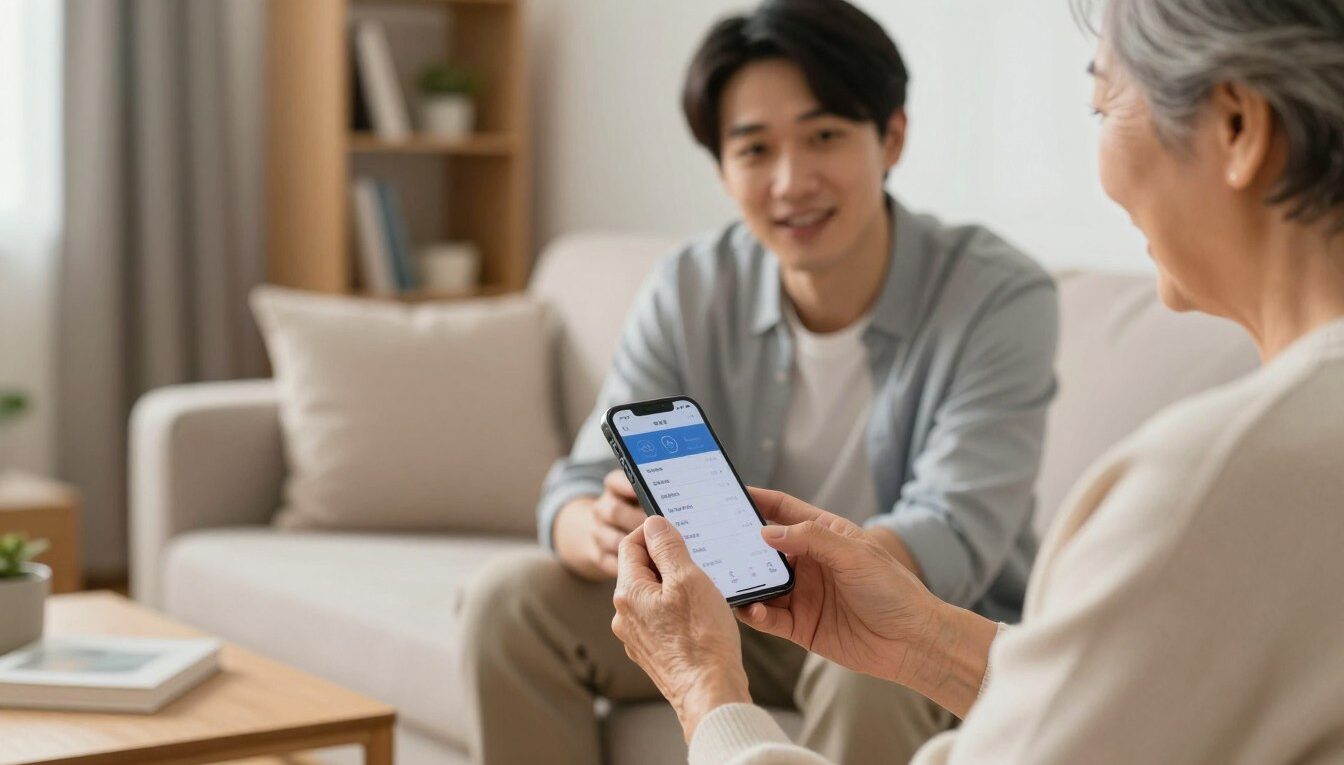
How to Set Up an iPhone or Android for an Elderly Parent: What to Enable First
The phrase “how to set up iPhone for elderly parent” may feel daunting, but a calm, thoughtful setup makes a big difference. A reliable smartphone helps 79% of Americans ages 65 and older stay connected and get help during emergencies.
Start with the basics that matter most: lock screen protection, larger text, a simpler home screen, clear calling options, and safety features. These choices help your loved one feel capable rather than lost.
I’ll cover steps for both iphone and Android devices and point out free or low-cost features that improve daily life. You’ll get practical, step-by-step instructions and a short practice plan so your person can try key tasks right away.
I’m Dan Alex, with 15+ years teaching seniors technology in a patient, respectful way. My goal is independence: your family member should use their phone confidently without needing you every time.
Why a Senior-Friendly Phone Setup Matters for Safety, Confidence, and Independence
A clear, predictable interface helps a senior feel in charge rather than overwhelmed. A phone that matches vision, hearing, and comfort reduces mistakes and builds daily confidence.
What “easy to use” really means
Easy means bigger words on the screen, fewer choices at once, and one clear way back home if something looks unfamiliar. Larger buttons and simple text make tasks feel natural.
Why clutter causes mistakes
Too many icons and crowded menus lead to accidental taps, wrong calls, or changed settings. Simplifying the interface lowers those risks and preserves dignity.
Caregiver peace of mind and privacy
Consistent layouts let users act more independently and reduce urgent calls from worried caregivers. Tracking or location sharing should be discussed and enabled with permission. Later sections will show a reliable back path to the home screen and simple steps for only the features a person needs most.
Before You Change Settings: Pick the Right Phone and Plan for Your Parent
Starting with the best device for daily needs makes configuration and learning easier for both of you. Match hardware and service to vision, hearing, hand comfort, and budget before you dive into settings.
iPhone vs Android — plain language
iPhone models are consistent across releases, so support and in‑person help at Apple Stores can be simpler. Android offers more options, including simple launchers and Easy Mode on some phones like Samsung.
What to look for in a device
- Screen size: pick one your loved one can read without strain.
- Battery life: choose a phone that lasts all day with typical use.
- Durability: a solid case and a shatter-resistant screen cut accidental costs.
Budget-friendly U.S. choices
Reuse a spare device, buy refurbished from trusted sellers, or buy new if you want the longest update support. The iPhone 16e is a best-value new option at $599.99; refurbished units can save hundreds and often include new batteries.
If calls and texts plus home Wi‑Fi cover most needs, consider low-cost plans like Mint Mobile (from $15/month), Consumer Cellular, or T-Mobile 55+ offers. Settings names may vary across Android brands; later sections give common menu paths and what to look for.
Start With the Lock Screen: Simple Security They Can Actually Use
Start with a simple lock screen so daily access stays fast while important data stays protected.
Why a lock screen matters: it keeps contacts, photos, and banking safe if the device is lost. That protection should not make routine use harder.
Face, touch, fingerprint, or PIN: choosing the least frustrating option
Face unlock can be the easiest when it works reliably. Fingerprint unlock is quick if a touch feels natural. A short passcode or memorable password is a dependable fallback.
Where to find the passcode settings
On iPhone, open Settings and tap Face ID & Passcode or Touch ID & Passcode. Follow the on‑screen prompts to add biometrics and create a passcode.
On Android, go to Settings > Security & privacy > Device unlock > Screen lock. Labels may vary by brand, but the menu path is similar.
- Pick a senior-friendly PIN: memorable but not obvious; avoid birthdays.
- Store recovery details in a locked drawer, sealed envelope, or password manager — not on the phone.
- Quick test: lock the device, unlock it three times in a row, and confirm your person can do it without coaching.
Make the Screen Easier to See: Text Size, Display Zoom, and Bold Buttons
Bigger text and simpler controls help a user read messages and press the right buttons every time.
Goal: your loved one should read without squinting and tap without hitting the wrong icon. Clear text and roomy buttons cut eye strain and accidental presses.
Increase text on iPhone
Open Settings > Display & Brightness > Text Size and move the slider up. For extra-large text, go to Settings > Accessibility > Display & Text Size > Larger Text and enable the larger sizes.
Increase text on Android
Open Settings > Accessibility > Display size and text. Adjust Text size for words and Display size to scale buttons and icons. Use both controls if words are readable but buttons feel small.
- Turn on Bold Text where available so labels look darker and clearer.
- Pick a high-contrast wallpaper, remove busy widgets, and keep icons spaced and simple.
- Check brightness and enable Auto-Brightness so the screen stays readable indoors and outside.
Mini-test: open Messages and Settings. Hold the device at arm’s length and confirm your user can read items comfortably.
Declutter the Home Screen so Nothing Feels “Lost”
A simple front page makes daily tasks steady and quick. Fewer items means fewer wrong taps and fewer “Where did it go?” moments. Keep your focus on the essentials and keep learning positive and practical.
Remove unused apps and keep essentials visible
Follow a first-screen rule: show only 4–8 most-used apps. Phone, Messages, Camera, and Photos belong up front. Add Maps or Weather if your person uses them often.
Rearrange and uninstall on each platform
iPhone: tap-and-hold an app until icons wiggle, tap the X to delete, or drag apps into place and into a folder.
Android: tap-and-hold an app, then drag it to Remove or Uninstall. Move items around so essentials always sit in the same spot.
Create a “Home” folder for daily needs
- Place direct calls, Contacts, rides (Uber/Lyft), pharmacy apps (CVS/Walgreens), and Weather in one folder.
- Label it Home so finding contacts and messages is one tap.
Caregiver tip: keep the layout constant unless asked for a change. Practice task: ask them to open Phone, send a short message, and view Photos from the home screen without help.
Turn On Simplified Modes That Reduce Swiping and Confusion
A pared-down interface can stop confusion and put essential tools within reach. Simplified modes shrink choices, enlarge buttons, and limit gestures so a user can work without guessing where things went.
Assistive Access on iOS 17+
Assistive Access gives a clear home screen that limits swiping and adds a dedicated Back control. Choose Rows for a list-style view or Grid for big tiles. Both reduce clutter and make icons easier to tap.
Start with Calls, Messages, Camera, and Photos. Add Music only if played often. Exit Assistive Access by triple-clicking the side or home button and entering the Assistive Access passcode you create.
Easy Mode and Simple Launchers on Android
Samsung Easy Mode (Settings > Display > Easy Mode) switches to large text and oversized buttons without extra installs. It’s often enough for users who prefer built-in accessibility.
| Launcher | Best for | Notes |
|---|---|---|
| Simple Launcher | Minimal needs | Just essentials, low learning curve |
| Big Launcher | Very large icons | Great where vision is limited |
| Senior Home | Guided experience | Extra prompts and easy navigation |
Quick setup plan:
- Pick Rows if your person prefers a readable list; pick Grid if large tiles are easier to spot.
- Place only 4–6 apps on the main screen at first: Calls, Messages, Camera, Photos, Weather (optional).
- Keep the Assistive Access passcode private and use the user’s Apple ID so settings stay correct.
These options boost independence and cut accidental taps. Test the layout by asking your person to open Phone and Photos, then return home using the Back control.
Set Up Calling and Messaging First, with One-Tap Shortcuts to Key People
Quick access to key contacts gives the device immediate, everyday value and calm.
Why start here: when reaching help is simple, the phone becomes a trusted tool. Prioritize two tasks: make calls and send messages easy and obvious.
Create direct-dial shortcuts on Android
Open Widgets > Contacts > Direct dial or Direct message. Pick a contact like “Call Daughter” or “Call Neighbor.” Place the shortcut on the first row of the home screen where it’s easy to find.
Create shortcuts and widgets on iPhone
Open Shortcuts, create a Call action, name it “Call Daughter.” Tap the share icon and Add to Home Screen. Alternatively, add the Contacts widget for quick access, but that may need one extra tap.
Make messages simpler by increasing text size in settings, archiving old threads, and marking a few preferred contacts. Put call buttons on the top row so a single large button starts a call.
| Platform | Best quick option | Notes |
|---|---|---|
| Android | Direct dial widget | One tap calls a contact; easy placement on home screen |
| iPhone | Shortcut button | Custom icon and label; reliable single-tap call |
| Both | Contacts widget | Shows multiple contacts; may need an extra tap |
Five-minute practice: answer an incoming call, call you back using the new button, and send a short message like “I’m home.” Repeat once so access feels natural.
Make It Loud and Clear: Ringtones, Alerts, Hearing Support, and Flash Notifications
Clear, reliable sound and visible alerts help your loved one notice calls and messages without stress.
The goal is simple: your person should hear or notice calls and messages every time without being startled by sharp tones.
iPhone audio and tone controls
Open Settings > Sounds & Haptics. Raise the ringer volume and pick a familiar ringtone and text tone. Turn on strong haptics if a vibration helps notice alerts.
Enable LED Flash for Alerts at Settings > Accessibility > Audio & Visual for a visible cue on missed sounds.
Android sound and vibration
Open Settings > Sound & vibration. Increase ring and notification volume. Choose a clear tone and boost vibration strength so the device is felt in a pocket or bag.
Helpful hearing features and voice clarity
Use Voice Isolation in calls when background noise is high. Check if the phone supports Made for iPhone or hearing aid compatibility for direct audio streaming.
- Watch the side button and volume controls—accidental presses often silence alerts.
- If hearing is changing, combine louder ringtone + vibration + flash for best coverage.
- Sound check: call the phone while it sits where it usually is.
- Send a text and watch for flash or feel the vibration.
- Adjust until each alert is noticed without startling your loved one.
Enable Safety Features: Find My/Find Hub, Location Sharing, and Emergency Info
A few careful settings mean your loved one can get help fast while privacy stays intact. These options help find a lost phone, share a location with consent, and give first responders vital medical details.
iPhone — Find My: Open Settings > tap your name > Find My > Find My iPhone and enable. In Find My app choose People > + > Share My Location > Share Indefinitely for ongoing access, or pick a time-limited option for short trips.
Android — Google Find Hub: Open Google app or Maps > Profile > Find My Device (or Find My Device app) and enable. For location sharing use Maps > Profile > Location sharing > New share > Until you turn this off.
Medical ID & Emergency contacts: iPhone: Health app > Medical ID > Edit > enable Show When Locked and add allergies, meds, and contacts. Android: Settings > Safety & emergency > Emergency information and contacts. Make sure entries are accurate.
| Feature | iOS Path | Android Path |
|---|---|---|
| Phone tracking | Settings > Find My | Google Maps > Find My Device |
| Location sharing | Find My > People > Share Indefinitely | Maps > Location sharing > Until you turn this off |
| Medical info | Health app > Medical ID (Show When Locked) | Settings > Safety & emergency > Emergency info |
| Emergency SOS | Settings > Emergency SOS (side button options) | Settings > Safety & emergency > Emergency SOS (power button) |
Emergency SOS and Crash Detection: On iPhone, enable Emergency SOS in settings and practice the side-button sequence (hold or five presses). Newer devices with crash detection can call automatically after a brief countdown. On Android, enable the power-button SOS option and rehearse carefully so accidental calls are rare.
Avoid Common Fears and Mistakes: Scams, Wrong Apple ID, and App Overload
Confusion often starts when an account, an app, or a passcode is shared in the wrong place; clear boundaries stop most problems.
Normalize the fear: scams are clever and target many people. Teach a short checklist: don’t click unknown links, never share verification codes, and pause if a message sounds urgent or threatening.
Explain two-factor authentication as a second check that blocks strangers even if a password is guessed. Turn it on in account settings and save recovery options where you can reach them.
Recommend Malwarebytes Security for Android and Malwarebytes Mobile Security for iPhone as low-cost protection. These apps add scam and malware detection and help when suspicious content arrives by email or message.
| Risk | What goes wrong | Simple fix |
|---|---|---|
| Shared Apple ID | Photos, contacts, and messages mix across devices | Create a separate account and sign in with your loved one’s Apple ID |
| Phishing links | Malicious content can steal data | Never tap unknown links; verify by calling a trusted number |
| App overload | User gets lost in menus and gestures | Keep 4–6 essential apps; add new ones only when useful |
Final confidence practice: show the back path and home button, then rehearse answering a call and sending a short message three times. Small wins build a steady, safe experience.
Conclusion
A few gentle choices can transform a busy screen into a reliable, friendly tool. Start by focusing on a small list of priorities you can keep steady.
Enable an easy lock method that your loved one can use, increase text so labels are readable, tidy the home screen, add one-tap call shortcuts, and turn on safety features like tracking and SOS. These features give immediate value and calm.
Keep changes minimal and consistent. Check weekly that volume is audible, the battery charges well, and key contacts remain on the first page. Respect permission and privacy when sharing location or emergency info.
With simple settings and short practice sessions, your relative gains confidence and independence. The right phone setup helps them stay connected, safe, and in charge of their routine.
FAQ
What should you enable first when preparing a phone for an older adult?
Why does a senior-friendly interface matter for safety and independence?
How do you choose between an iPhone and an Android for a senior?
What phone hardware traits matter most for older users?
How do you pick a plan that fits an older adult’s needs?
Which unlock option is usually least frustrating?
Where do you enable Face ID or Touch ID on an iPhone?
How do you enable a secure screen lock on Android?
How can you make on-screen text easier to read?
What quick vision improvements help most?
How do you declutter the home screen so apps aren’t lost?
How do you rearrange or uninstall apps on iPhone vs. Android?
What simplified modes reduce swiping and confusion?
How do you make calling and messaging one-tap actions?
What settings improve sound and hearing support?
How do you prevent accidental silencing of alerts?
How do you enable tracking and sharing for safety without breaching privacy?
Where do you add Medical ID and emergency contacts?
How do you set Emergency SOS options on each platform?
What common setup mistakes should you avoid?
How can you protect against scams and phishing?
What’s a good caregiver tip for ongoing confidence?

Dan Alex is a technology specialist and digital advocate with over 15 years of experience in system optimization and user experience (UX). Throughout his career, Dan has witnessed the frustration that rapid technological shifts cause for the senior community. As the founder of Apps for Download, Dan Alex combines his technical background with a passion for simplified education. His “human-first” approach to technology has made him a trusted voice for families and caregivers looking to empower their loved ones with digital tools.