
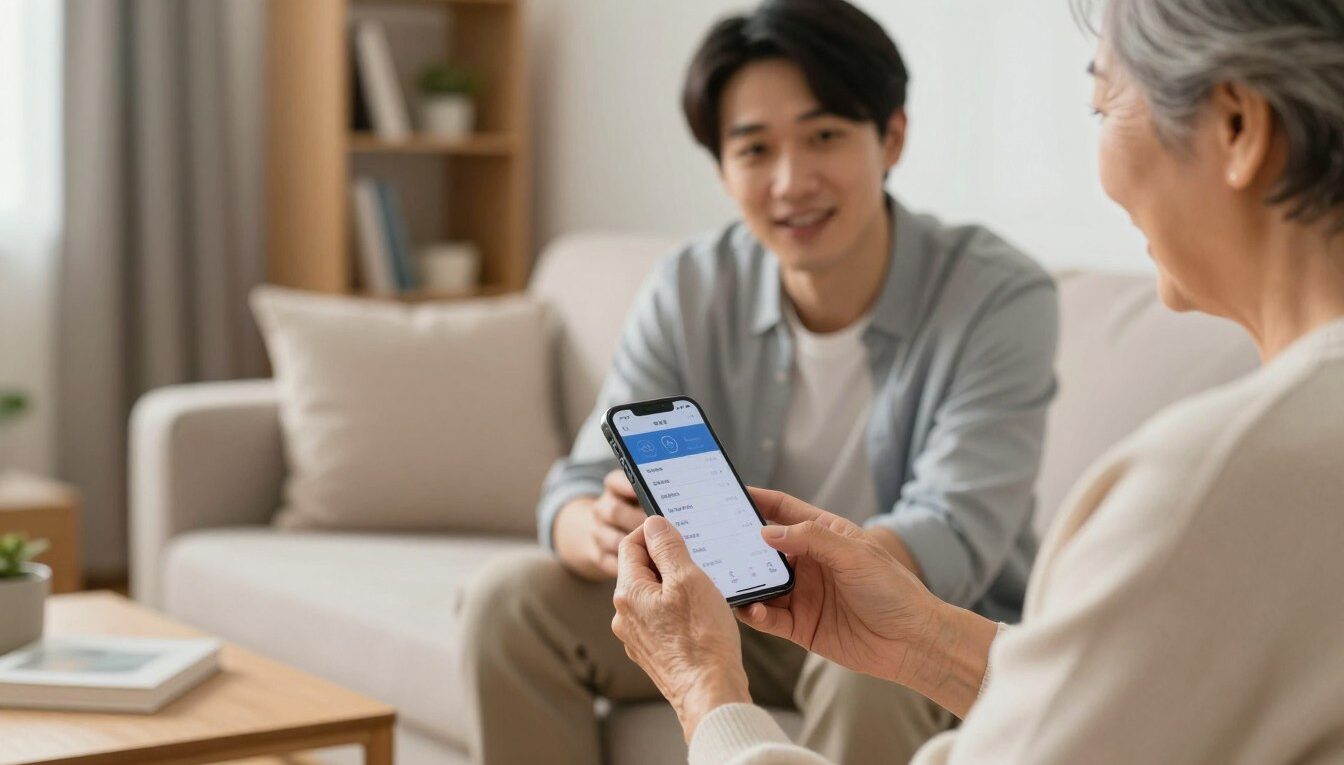
How to Set Up an iPhone or Android for an Elderly Parent: What to Enable First
Setting up a phone for a parent or grandparent is one of the most practical things you can do for their safety and independence. A well-configured smartphone means they can call for help in an emergency, stay in touch with family, manage medications, and navigate to appointments — without needing to ask for help every time. But a phone handed over with its default settings rarely works well for older adults. The text is too small, the home screen is cluttered, and the most important features are buried. This guide walks through exactly what to enable first, in the order that matters most.
Before You Start: iPhone or Android?
If your parent doesn’t already have a preference or a device, this is worth thinking through before buying anything.
iPhone is the better choice for most older adults who will rely on family support. Every iPhone runs the same operating system, which means when you help remotely, you both see the same menus and settings. Apple Stores also offer in-person support for free, which can be invaluable for someone who needs hands-on help. The iPhone SE (third generation) is a good affordable option if cost is a concern; the standard iPhone 16 offers larger screens and the best accessibility features available.
Android offers more flexibility, including phones with larger screens at lower price points. Samsung phones in particular offer a built-in “Easy Mode” that simplifies the interface significantly — useful for someone who finds the standard Android layout overwhelming. The Samsung Galaxy A series provides reliable performance at a lower cost than flagship models.
Whichever you choose, make sure it has a large enough screen to read comfortably, a battery that lasts a full day with normal use, and a durable case before it leaves the box. Falls happen, and a cracked screen on the first week is a discouraging start.
The First Five Settings to Enable (In This Order)
Don’t try to configure everything at once. These five settings make the biggest immediate difference and should be done before anything else.
1. Increase text size and enable bold text. This is the single change that makes every other part of the phone easier to use. On iPhone: go to Settings → Display & Brightness → Text Size, and move the slider to the largest comfortable size. Then go to Settings → Accessibility → Display & Text Size and turn on Bold Text. On Android (Samsung): go to Settings → Display → Font Size and Style, and increase both font size and screen zoom. Most people set this too small the first time — err on the side of larger.
2. Set up a simple lock screen. A phone without a lock screen is a security risk, but a complicated lock can be more frustrating than helpful. Face ID (iPhone) or fingerprint unlock (most Android phones) is the best option — it’s fast, requires no memorization, and unlocks reliably. If biometrics don’t work well (some older adults find fingerprint readers inconsistent), a 6-digit PIN is fine. Avoid complex passwords for the lock screen; the goal is quick access, not maximum security at this step. Go to Settings → Face ID & Passcode (iPhone) or Settings → Security → Screen Lock (Android).
3. Simplify the home screen. Remove every app that won’t be used regularly. On iPhone, press and hold any app icon, tap “Remove App,” and choose “Remove from Home Screen” (not Delete) to keep the app available without cluttering the screen. On Android, press and hold an app and drag it to “Remove.” Aim for no more than eight apps on the main screen: Phone, Messages, Contacts, Camera, a weather app, a maps app, a medication reminder app if needed, and one more of their choice. Everything else goes in a folder labeled “More Apps” or gets removed entirely.
4. Add one-tap call shortcuts for key contacts. The ability to call a family member with a single tap — without navigating through a contacts list — is one of the most valuable things you can set up. On iPhone: open the Shortcuts app, tap the “+” button, tap “Add Action,” search for “Call,” select it, choose the contact, name the shortcut (“Call Daughter” or “Call Son”), and add it to the home screen. On Android: go to the Contacts app, open a contact, tap the three-dot menu, and choose “Add to Home Screen.” Place these one-tap call buttons in the top row of the home screen where they’re immediately visible.
5. Set up emergency information and SOS. On iPhone: open the Health app, tap your profile photo, tap Medical ID, tap Edit, fill in allergies, medications, blood type, and emergency contacts, and enable “Show When Locked” so first responders can access this information without unlocking the phone. Also go to Settings → Emergency SOS and enable “Call with Side Button.” On Android: go to Settings → Safety & Emergency → Emergency Information, fill in the same details, and enable Emergency SOS under the same menu. Test the SOS feature together so your parent knows how it works before they need it.
Accessibility Features Worth Enabling for Vision, Hearing, and Dexterity
Beyond the basics, these accessibility features address the three most common challenges older adults have with smartphones.
For vision difficulties: On iPhone, go to Settings → Accessibility → Display & Text Size and explore Increase Contrast, Reduce Transparency, and Color Filters. Display Zoom (Settings → Display & Brightness → Display Zoom) makes everything on screen larger, not just text. On Android, go to Settings → Accessibility → Visibility Enhancements for similar options including high contrast text and color correction.
For hearing difficulties: On iPhone, go to Settings → Accessibility → Audio & Visual and enable LED Flash for Alerts — the camera flash will blink when you receive a call or notification, useful for anyone who might not hear a ringtone. Also enable Haptics under the same menu to add vibration to alerts. Go to Settings → Sounds & Haptics and increase the ringer volume as high as it needs to be. On Android, go to Settings → Sound & Vibration and enable both vibration and flash notification.
For limited hand dexterity or arthritis: On iPhone, go to Settings → Accessibility → Touch → AssistiveTouch and enable it. This adds a floating button on the screen that gives quick access to common actions — home, volume, lock screen — without needing to press physical buttons. On Android, go to Settings → Accessibility → Interaction and Dexterity, where you can enable Switch Access and adjust touch sensitivity. Both platforms also allow you to increase the touch hold duration, which prevents accidental taps from brief unintentional contact.
The Simplified Interface: Assistive Access (iPhone) and Easy Mode (Android)
If your parent is genuinely struggling with the standard interface despite the adjustments above, both platforms offer a more dramatic simplification option.
Assistive Access on iPhone (available on iOS 17 and later) replaces the standard home screen with a much simpler layout — either a grid of large tiles or a straightforward list. Navigation is minimal, and a persistent Back button appears on every screen so getting “lost” becomes nearly impossible. To set it up: go to Settings → Accessibility → Assistive Access → Set Up Assistive Access. You choose which apps to include, configure each one for simplicity, and set a passcode to enter and exit the mode. Start with just Phone, Messages, Camera, and Photos.
Easy Mode on Samsung Android phones (Settings → Display → Easy Mode) converts the home screen to larger icons, simplified menus, and bigger text with one switch. It doesn’t limit functionality the way Assistive Access does, but it removes visual complexity significantly. For Samsung users who feel overwhelmed by the standard layout, this is often all that’s needed.
Protecting Against Scams: The One Conversation to Have
Setting up the phone correctly protects against accidents and usability problems. Protecting against scams requires one direct conversation.
The most important thing to communicate: no legitimate organization will ever call, text, or email asking for a password, a verification code, or a gift card payment. Not Medicare. Not Social Security. Not the IRS. Not Apple or Google. Not their bank. If anyone contacts them claiming to be from one of these organizations and asks for any of these things, the answer is to hang up, not reply, and call a family member to verify before doing anything else.
Enable two-factor authentication on their email account (Settings → Security on Gmail or iCloud) so that even if a scammer gets their email password, they still can’t access the account without the code sent to the phone. This one setting blocks a large percentage of account takeover attempts.
Finally, show them how to end a call. It sounds obvious, but many older adults feel it’s rude to hang up on someone, even when that someone is running a scam. Confirm clearly: it is always acceptable to say “I need to speak with my family first” and end the call. Scammers rely on urgency and social pressure. Slowing down and checking with a trusted person breaks almost every scam.

Dan Alex is the founder and lead writer at Apps for Download, focused on translating digital literacy and accessibility topics into clear, jargon-free guidance for older adults and their families. Every guide is researched against reputable sources on digital safety and assistive technology rather than presented as personal expertise alone.