
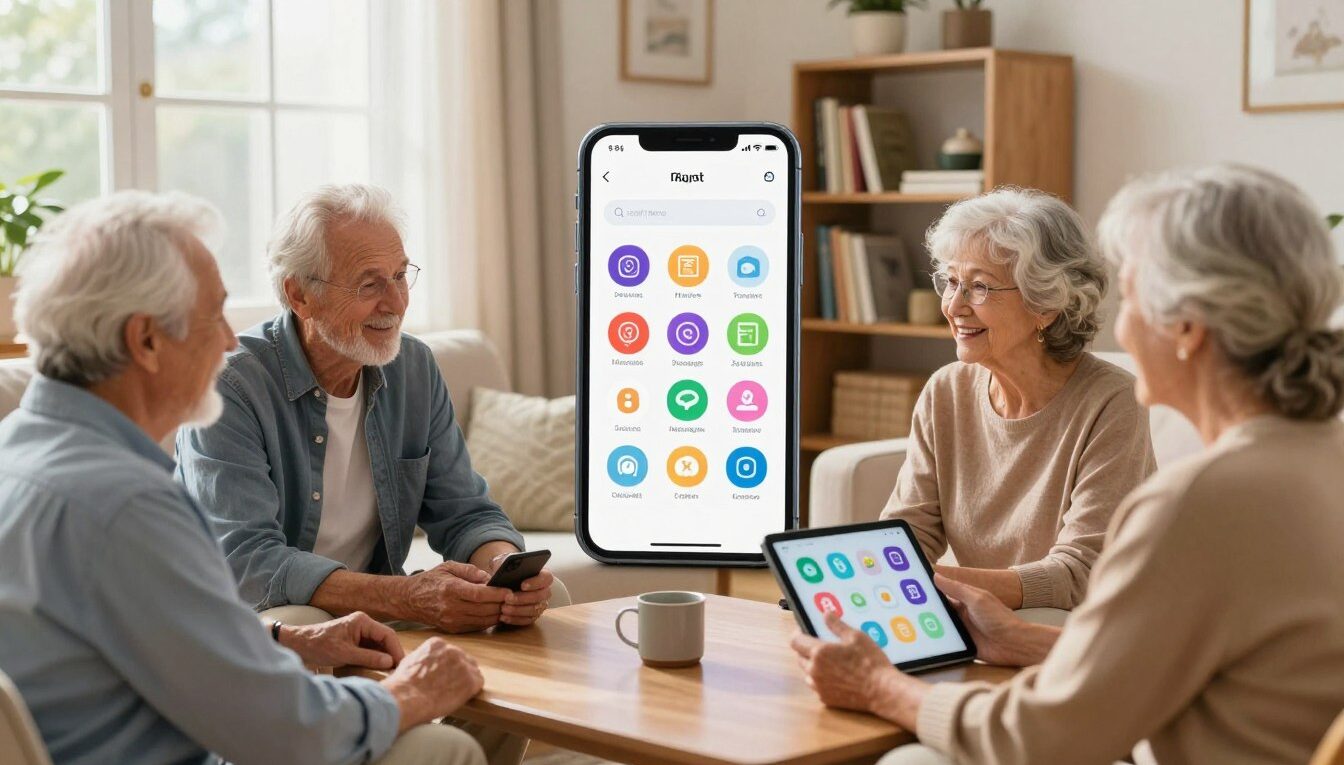
The 7 Best Apps for Older Adults Who Are Just Getting Started With Technology
Getting started with a smartphone doesn’t mean learning everything at once. It means finding a small number of apps that solve real daily problems and using those well. This list focuses on exactly that: seven apps that make meaningful differences in everyday life — from managing medications to staying in touch with family to reading small print in a restaurant — all of them free or low-cost, all of them available on both iPhone and Android.
What to Look for Before You Download Any App
Not every app is designed with older adults in mind. Before downloading anything, check for three things: large, readable text inside the app; a simple layout that doesn’t require navigating through multiple menus to do basic tasks; and strong ratings with a recent update date in the App Store or Google Play. An app that hasn’t been updated in two years is more likely to have technical problems and security gaps.
Also, before you set up any app, take two minutes to increase your phone’s text size if you haven’t already. On iPhone: Settings → Accessibility → Display & Text Size → Larger Text. On Android: Settings → Display → Font Size. This one change makes every app — not just new ones — significantly easier to use.
The 7 Apps Worth Starting With
1. Medisafe — for managing medications reliably. Medisafe is the most practical health app available for older adults. It lets you add each medication you take, set reminder times for each dose, and confirms with a checkmark when you’ve taken it. If you miss a dose, it can send a notification to a family member you’ve designated — not for every reminder, just for missed ones. It also flags potential drug interactions when you add multiple medications, which can be a helpful safety check between doctor visits. Medisafe is free on both iPhone and Android, with optional paid features that most users don’t need.
Setting it up: Download Medisafe, create a free account, tap the “+” button, and add your first medication by name. Enter the dose and the time you take it. Repeat for each medication. Add one family member as a “Medfriend” under your profile settings so they receive missed-dose alerts. The whole setup takes about ten minutes.
2. Google Maps — for directions and never losing your car again. Google Maps gives turn-by-turn voice directions that guide you step by step without needing to watch the screen. It also has one feature older adults find particularly useful: when you park, tap the blue dot showing your location and choose “Set as parking location.” When you return to a parking lot after a long appointment or shopping trip, open Google Maps and tap “Saved parking” to get walking directions back to your car. Free on both platforms.
3. Magnifying Glass + Flashlight — for reading small print anywhere. Restaurant menus, prescription labels, instruction sheets, ingredients on packaging — small print in poor lighting is one of the most consistent frustrations for older adults. This free app turns your phone’s camera into a magnifying glass with adjustable zoom, a built-in flashlight, and a freeze-frame feature that lets you hold the image still to read it carefully. It’s simpler and more useful than the built-in camera for this purpose. Free on iPhone and Android.
4. Messenger — for staying in touch with family and seeing their faces. Facebook Messenger works independently of Facebook — you don’t need to scroll through a social media feed to use it. It supports text messages, photo sharing, voice calls, and video calls, all in one place. The video call feature is what most families use it for: being able to see grandchildren’s faces during a conversation makes a real difference compared to a standard phone call. Messenger is free on both platforms and works on Wi-Fi, which means no cellular data costs for calls when you’re at home.
Setting it up: Download Messenger and sign in with your Facebook account, or create a free account using just your phone number. Ask a family member to send you a message first — once you receive it, replying and calling from there is straightforward.
5. GoodRx — for comparing prescription prices before you pick them up. Prescription drug prices vary significantly between pharmacies — sometimes by $50 or more for the same medication. GoodRx shows you the current price at every pharmacy near you and provides a free coupon that you can show at the counter or send directly to the pharmacist. Many people are surprised to find that the GoodRx coupon price is lower than their insurance copay for certain medications. Free on both platforms.
6. Be My Eyes — for getting help reading or identifying anything visually. Be My Eyes connects you, through a live video call, to a sighted volunteer anywhere in the world who can help you read a label, identify an item, troubleshoot a device, or navigate an unfamiliar situation. The service is free, typically connects in under a minute, and is available 24 hours a day. There’s also a paid option that connects you directly to customer support representatives for specific companies. Many older adults use it occasionally — for difficult labels or unfamiliar situations — rather than as a daily tool. Free on both platforms.
7. Audible — for books without eye strain. Audible is Amazon’s audiobook service. If reading has become tiring due to vision changes or eye strain, audiobooks offer access to the same books, stories, and information without needing to look at a page or screen. You can listen while walking, doing chores, or resting. The Audible app is free to download and includes some free content; a monthly subscription ($14.95/month) provides one audiobook credit per month plus access to a rotating library of included titles. A 30-day free trial is available for new users.
How to Start Without Feeling Overwhelmed
The most common mistake when getting started with apps is trying to learn too many things at once. Pick one app from this list — the one that solves your most pressing daily problem — and use only that for the first two weeks. Don’t add another app until the first one feels comfortable.
For most people, the best starting point is Medisafe if managing medications is the priority, or Google Maps if getting to appointments independently is the main concern. Both are simple to set up, genuinely useful from day one, and will build the confidence to try the next one.
If you have a family member helping you, ask them to set up the first app with you and do one practice run together — send one message, set one reminder, or look up one destination. Doing it once with someone watching is worth more than reading instructions ten times alone.
A Few Cautions for Staying Safe as You Explore
As you start using more apps, a few habits will keep you protected.
Only download apps from the official store. That means the App Store on iPhone or Google Play on Android — never from a link in an email, a text message, or a website. The official stores review apps for safety before listing them; third-party downloads do not have that protection.
Be cautious about subscriptions. Many apps offer a free trial that converts to a paid subscription automatically. When you start a trial, note the date it ends and set a reminder to cancel if you don’t want to be charged. Check Settings → Subscriptions on iPhone or Google Play → Subscriptions on Android to see everything you’re currently subscribed to.
If an app asks for permissions that don’t match what it does, decline. A flashlight app doesn’t need access to your contacts. A recipe app doesn’t need your location. Apps that request more permissions than their purpose requires are worth being suspicious of. You can review and adjust permissions at any time under Settings → Privacy on iPhone or Settings → Apps → Permissions on Android.
Technology is most useful when it solves specific problems without adding new ones. Start with one app, learn it well, and build from there at whatever pace feels comfortable. There’s no deadline, and no amount of progress is too small.

Dan Alex is the founder and lead writer at Apps for Download, focused on translating digital literacy and accessibility topics into clear, jargon-free guidance for older adults and their families. Every guide is researched against reputable sources on digital safety and assistive technology rather than presented as personal expertise alone.