
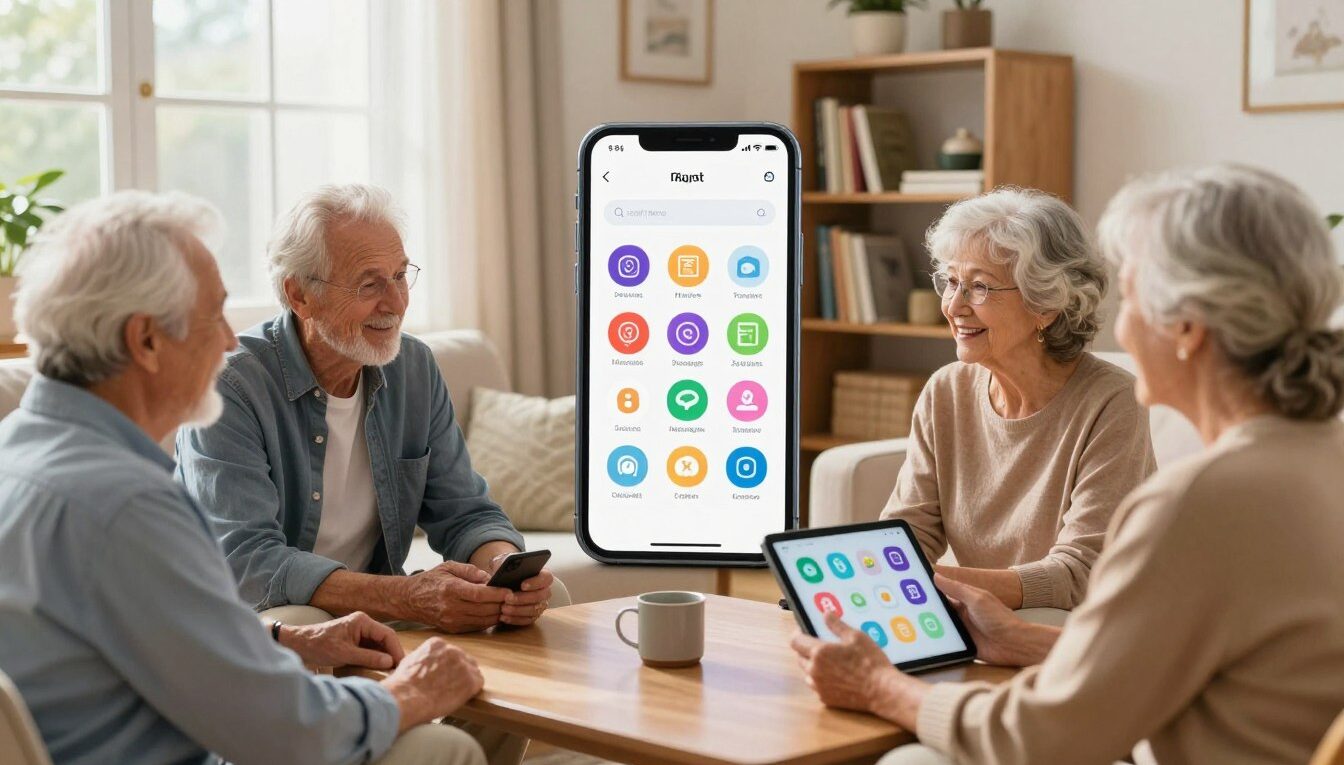
The 7 Best Apps for Older Adults Who Are Just Getting Started With Technology

If you or a parent are new to phones, this short guide will help. I picked simple tools that reduce daily friction, like missed doses, getting lost, or forgotten passwords.

These apps make life easier and build confidence. Each choice works on iPhone and Android, or has a clear equivalent, and includes tips to make text larger and screens easier to read.

You don’t need to be “good with tech” to benefit. The app picks are beginner-friendly, practical, and mostly free or low-cost. I’ll show what each does in real life and how to set it up step by step.

This list is for you if you are 65+ and starting out, and for family or caregivers teaching someone slowly. Expect clear, senior-focused guidance that respects your pace.

By Dan Alex, technology specialist and digital education advocate with 15+ years of experience helping older adults navigate the digital world.

Why the right apps can make everyday life easier and safer for seniors

Simple, reliable tools can make daily life easier and help you feel more independent. The right choices support routines at home and add quiet confidence when you step into the community.

How beginner-friendly tools support independence at home and in the community

Well-chosen apps help you manage medications, set reminders, store photos, and share quick updates with family. They can also guide you to a doctor’s office, mark where you parked, and keep a phone number ready when you need it.

What “easy to use” looks like on iPhone and Android

Easy means big buttons, clear words, and uncluttered screens. Both iPhone and Android can meet this need when you increase text size, enable high-contrast modes, and keep only a few icons on the home screen.

  • Start small: one or two tools is enough at first.
  • Involve family or a caregiver to set things up and test them together.
  • Review security tips occasionally to help keep your access and data safe.

When you pick practical options that truly help, you add safety and give caregivers peace of mind. That steady approach builds confidence over time.

How to choose apps you’ll actually use

Picking an app starts with one question: what do you want it to do today? Name one goal—health, safety, staying connected, money, or fun—and use that to guide your choice.

Start with your goal

If health is the priority, look for medication reminders and refill alerts. For safety, pick location or emergency features. For connection, choose simple messaging or video tools.

Quick accessibility checklist

Before you download, check these features: large text, clear icons, high contrast, simple navigation, and helpful voice controls if reading feels hard.

Free vs. low-cost

Many apps are free to download and work without paying. If a subscription appears, note trial length and cancel options before you accept.

A simple setup routine

Download one app at a time. Sign in slowly and write down the login. Test one task: send one message, set one reminder, or save one location.

Goal What to look for Cost One easy setup step
Health Medication reminders, clear text Often free Enter one medication and set a daily reminder
Safety Location sharing, emergency contact Free or low-cost Add one trusted contact and test the alert
Connection Big buttons, video or message Usually free Send one photo or make a short call
Money & Fun Clear menus, simple navigation Free or subscription Try one search or play one song

The best apps for older adults beginners

A small set of clear, low-cost tools can cover medication, navigation, communication, money, and photos. These core starters keep daily tasks simple without overwhelming you or a caregiver.

Medisafe — medication reminders and safer routines

Medisafe shows a visual schedule with pill images and sends clear reminders on iPhone and Android. It warns about interactions, flags low supply, and can notify a family member if a dose is missed. One in five adverse drug events happens after wrong dosing, so this tool helps reduce risk.

Google Maps — directions and saved parking

Google Maps gives turn-by-turn directions and a quick way to save your parking location. Tap the blue dot, choose “Set as parking location,” then use Directions → Saved parking when you return. Large text and voice directions help users navigate with confidence.

Magnifying Glass + Flashlight — read small print

This free app uses camera zoom, a flashlight, and freeze-frame so you can read menus, labels, and paperwork even in low light. About one in three people 65+ has some eye disease; a simple magnifier restores access to small text.

Facebook Messenger — stay close to family and friends

Messenger supports texting, photo sharing, and video calls on both platforms. Group calls and playful effects make checking in easy, especially if you already use Facebook.

Personal Capital — clear retirement visuals

Personal Capital offers straightforward charts, retirement projections, and “what if” scenarios. It helps you check accounts and plan without confusing menus.

GoodRx — compare prices and use coupons

GoodRx compares pharmacy prices, supplies coupons, and sends price-drop alerts. Medisafe can link to GoodRx savings if you prefer not to add another app.

Snapfish — print photos and make books

Snapfish turns phone photos into prints and photo books that arrive by mail. It’s a simple way to keep family memories visible and share moments with friends.

App Main benefit Platform Cost
Medisafe Medication reminders iPhone / Android Free
Google Maps Directions & parking iPhone / Android Free
Snapfish Photo prints & books iPhone / Android Free to order
GoodRx Price compare & coupons iPhone / Android Free

Step-by-step: set up each app in a senior-friendly way

Start each setup with a clear plan so the first day with a new tool feels calm. Use official sources to download; this cuts the chance of scam copies and confusing names.

Before you download

Open Apple’s App Store on iPhone or Google Play on Android. Search the exact app name and check the developer and ratings.

Make text bigger and screens easier to read

On iPhone: go to Settings → Accessibility → Display & Text Size. Increase text, enable Bold Text, and try Display Zoom if needed.

On Android: open Settings → Display → Font size or Display size. Check Accessibility for high-contrast text or magnification gestures.

Turn on helpful notifications without overload

Keep medication reminders and emergency alerts on. Mute promotional banners. Choose a gentle sound or vibration that you notice but that won’t startle you.

Practice once with a loved one

Use the “three taps” method: tap to open, tap the main button, tap to finish. Practice one small task per app with a family member or caregiver. Stop after one run so learning feels easy.

Step Quick action Why it helps
Download safely Use App Store / Google Play Reduces scams and fake copies
Adjust text Turn on larger fonts Improves reading at home and out
Save login Write password in a safe place Faster access, fewer resets

You’re not trying to learn everything at once. Focus on one feature that makes life smoother and ask a trusted loved one for help when you need it.

Real-life ways these apps help you day to day

A few simple actions on your phone can turn a rushed day into a calm, organized one. Small steps add up and let you keep more control over time and tasks.

Staying on schedule with medications and refills

Medisafe sends a reminder when it’s time to take medication. You tap to confirm and the app logs it. If a refill runs low, you get an early nudge so you don’t scramble at the last minute.

A caregiver or family member can be notified if a dose is missed, giving you a safety net without taking away independence.

Getting to appointments and finding your car with less stress

Use Google Maps to plan travel time and follow voice directions to avoid wrong turns. Leave earlier when traffic looks heavy to reduce driving anxiety.

Save your parking location so you walk back confidently after long visits or in crowded lots.

Reading menus, labels, and medical paperwork more comfortably

Open Magnifying Glass + Flashlight to zoom, freeze the image, and turn on the light. It helps when lighting is poor or text is tiny on a label.

Keeping up with family through messages, photos, and video

Messenger lets you send a photo or join a short video call with grandchildren. Seeing faces and hearing voices keeps relationships strong with a quick tap.

Stretching your budget and saving memories

Check GoodRx before you pick up a prescription to compare prices and apply a coupon. Set a price-alert so you catch savings later.

Choose favorite photos and order prints or a photo book with Snapfish so memories don’t stay trapped on the phone.

  • Small routines protect your time and reduce stress.
  • Caregivers can set up alerts and test one feature with you.
  • These tools help keep life organized while you stay independent.
Daily need Simple action Who it helps Expected result
Medications Enable reminders and refill alerts Users & family Fewer missed doses, timely refills
Appointments Check route and save parking Driver or rider Less stress, easier return to car
Reading Use magnifier + flashlight Anyone with small-print tasks Clearer labels and paperwork
Connections & memories Send video, order prints Family & friends Stronger ties and tangible photos

More beginner-friendly picks if you want to expand your toolkit

When you feel ready to try more tools, a few optional selections can add comfort and fun. These extras support vision, memory, security, and gentle social play without overwhelming you.

Audible — audiobooks that ease reading when vision or arthritis makes print hard

Audible lets you listen to books and podcasts hands-free. The app is free to download and offers a 30-day trial; note the subscription date so you can cancel if you choose not to continue.

LastPass — remember one master password, not many

LastPass stores and autofills passwords securely. You keep a single master password and reduce sticky notes, improving safety and access.

Words with Friends & Spotify — casual games and music to stay connected and engaged

Words with Friends offers low-pressure word play and light brain exercises you can enjoy at your pace. Spotify provides music and podcasts to match your mood with a free tier and optional subscription plans.

Optional add-ons — voice assistants and simple location sharing

Voice assistants (Alexa, Google Assistant) help with timers and calls when tapping is hard. Simple location sharing gives peace of mind; you control when it’s on and who can see your location.

Name Why try Cost / Trial Accessibility benefit
Audible Audiobooks for easier listening Free download, 30-day trial, then subscription Hands-free, reduces eye strain
LastPass Secure password storage Free tier; premium options Fewer passwords to remember
Words with Friends Casual word games and social play Free with ads; optional subscription Gentle brain exercises, asynchronous play
Spotify / Voice + Location Music, podcasts; hands-free help; peace of mind Free tier; premium subscription; optional sharing services Audio access, voice control, controlled location sharing

Common fears and mistakes seniors make with apps and how you can avoid them

Small mistakes happen; the good news is most are easy to fix. You do not have to stop using a phone because you fear breaking it. Take gentle steps and keep control of each change.

Fear of “breaking” the phone: safe ways to explore and undo mistakes

Try one new thing at a time. If something seems wrong, tap the home button or swipe back to exit. Deleting an app does not harm the device and you can reinstall it later.

Too many notifications: how to quiet the noise and keep what matters

Alerts steal time and make you ignore the important ones. Turn off most notifications and keep only the ones you need, like medication reminders.

Password and scam risks: simple rules that protect you

Use a different strong password for important accounts and never share one-time codes. Pause if a message sounds urgent and verify with a trusted family member before acting.

Privacy worries with messaging and location: what to share and what not to

It’s fine to share photos with family. Do not share financial details, passwords, or codes. Only share your location with trusted ones and only when it helps, such as travel days.

Overbuying subscriptions: how to spot trials, cancel, and choose free options

Look for “free trial” wording and check the renewal date right after signing up. Many free options meet daily needs. A short monthly check by a caregiver can prevent surprise charges.

  • Normalize fear: most fixes are reversible, so explore slowly.
  • Safe exploring: one change at a time, look for back or home to exit.
  • Quick checks: update the device, use trusted stores, and pause on unexpected requests.
Issue Simple action Who it helps
Too many alerts Keep only essential ones You and caregivers
Scam messages Pause and verify with family You and family
Unexpected charge Check trial end date and cancel if unsure You and account holder

Conclusion

Small changes on your phone can protect your time and ease everyday tasks. Choose one tool from this list and set it up with larger text and only the alerts you need.

Practice one small task: confirm a reminder, save a parking spot, or send a single message. Each small win builds confidence, strengthens memory, and makes life at home and in the community simpler.

If you want company, ask a trusted family member or friend to sit with you for 15 minutes and try the “three taps” method once. Many useful features are free or low-cost, and you can ignore extras you do not need.

You are learning at your own pace, and that pace is the right pace. Dan Alex, technology specialist and digital education advocate, helping older adults build digital confidence for 15+ years.

FAQ

How do I pick apps that match my daily needs?

Start by naming one goal—health, safety, connection, money, or fun. Then look for apps with large text, clear icons, and simple screens that focus on that goal. Try one app at a time, use free trials when available, and ask a family member to help set it up so you can test it without pressure.

What makes an app easy to use on iPhone or Android?

Easy means readable text, big buttons, high-contrast colors, and predictable menus. Voice controls and spoken feedback help when tapping is hard. Check the app’s reviews and accessibility notes in the App Store or Google Play before downloading.

Are medication reminder tools safe and accurate?

Medication reminder tools like schedule alerts and refill prompts can reduce missed doses, but you should verify times and dosages with your pharmacist or doctor. Use apps that let you add pictures of pills and share schedules with a caregiver for added safety.

Can I use navigation apps if I forget where I parked?

Yes. Navigation apps let you save your parking spot and provide step-by-step directions back to your car. On Android and iPhone, enable location access and save the parking pin right after you park so the app can guide you later.

How do I avoid paying for subscriptions I don’t need?

Check whether essential features are free before subscribing. Use trial periods cautiously—set a calendar reminder to cancel if you don’t want to continue. Compare features across similar apps; often a free tool covers basic needs like reminders, maps, or photo printing.

What privacy steps should I take with messaging and location sharing?

Limit sharing to trusted contacts, turn off continuous location when not needed, and review app permissions in your phone settings. Use strong, unique passwords or a password manager, and avoid sharing sensitive information over public Wi‑Fi.

How can I make text and icons bigger on my phone?

On iPhone, go to Settings > Display & Brightness > Text Size or Accessibility > Display & Text Size. On Android, open Settings > Accessibility or Display to change font size and display scaling. Increasing contrast and enabling bold text can also help readability.

What’s the best way to learn an app without getting frustrated?

Use the “three taps” method: identify the three actions you need most, practice them with a loved one, and repeat each action three times. Keep the coaching session short and positive, and write simple, step-by-step notes you can follow later.

Are password managers safe and are they easy to use?

Password managers like LastPass securely store passwords and auto-fill logins so you don’t memorize multiple codes. They use strong encryption; you only need to remember one master password. Ask a tech‑savvy family member to set it up and show how to unlock it with biometrics if available.

How do I reduce notification overload but keep important alerts?

Turn off nonessential alerts in the app settings and keep only critical notifications, such as medication alarms or appointment reminders. On your phone, use Do Not Disturb during set hours and allow exceptions for urgent contacts.

Can voice assistants help if I have trouble with touchscreens?

Yes. Voice assistants like Siri and Google Assistant let you call contacts, set reminders, play music, and get directions hands‑free. Enable voice activation in settings and practice simple commands to build confidence.

How do I find affordable prescriptions using my phone?

Prescription savings tools let you compare prices at nearby pharmacies and access coupons. Enter your medication name and dosage to see price differences, then present the coupon or app discount at pickup. Always confirm with your pharmacist that a coupon applies to your specific prescription.

Is it safe to share photos and messages with grandchildren online?

Yes, when you use secure messaging or social platforms with privacy controls. Choose apps with easy privacy settings, limit posts to approved contacts, and avoid sharing location details in photos. Teach younger family members not to post personally identifying information either.

What should I do if I think I’ve downloaded a scam or risky app?

Delete the app immediately, change any passwords you used with it, and run a security scan if your phone offers one. Report the app to the App Store or Google Play and contact your bank if you entered financial details. Ask a trusted friend or family member to review future downloads before you install them.
